Workloads
Workloads are applications and the microservices inside them. User workloads and system workloads are separate lists. System lists include the platform applications, including the controller microservice.
An application is the named group. A microservice is one container on one Edgelet node. In YAML that node is kind: Agent. See Applications and microservices.
| Page | Sidebar title | Address |
|---|---|---|
| Application List | Application | /#/Workloads/ApplicationList |
| System Application List | System Application | /#/Workloads/SystemApplicationList |
| Microservices List | Microservices | /#/Workloads/MicroservicesList |
| System Microservices List | System Microservices | /#/Workloads/SystemMicroservicesList |
All four pages have Search and the YAML dropzone. None of them has a Create button. You add workloads by uploading YAML or by deploying a template. See Catalog and templates.
A name in another panel can open these lists with applicationId or microserviceId and pop the matching detail panel.
Application List
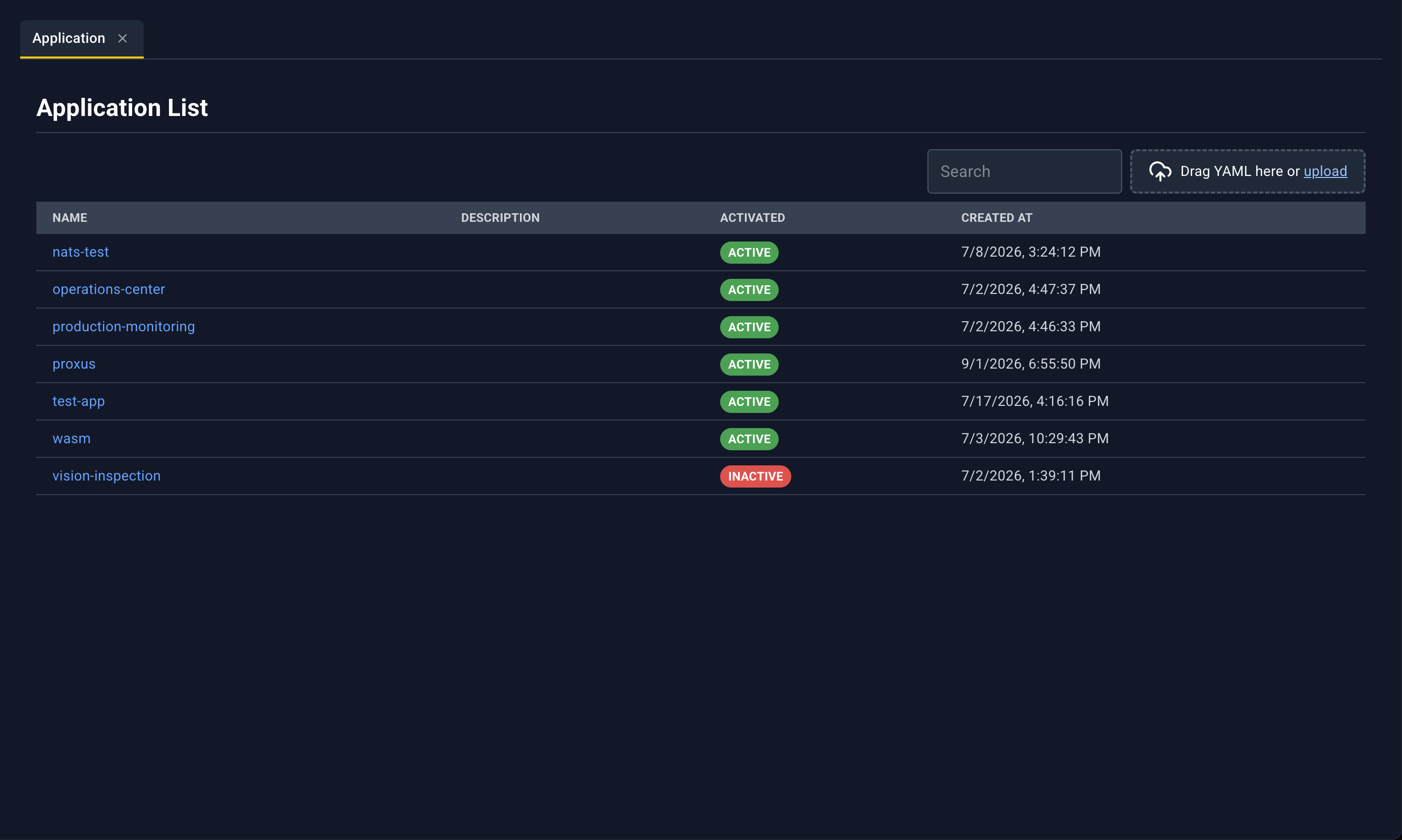
User applications only.
| Column | What it shows |
|---|---|
| Name | Application name. Click to open the detail panel. |
| Description | Description text |
| Activated | Pill ACTIVE or INACTIVE |
| Created At | Local date and time |
Application detail panel
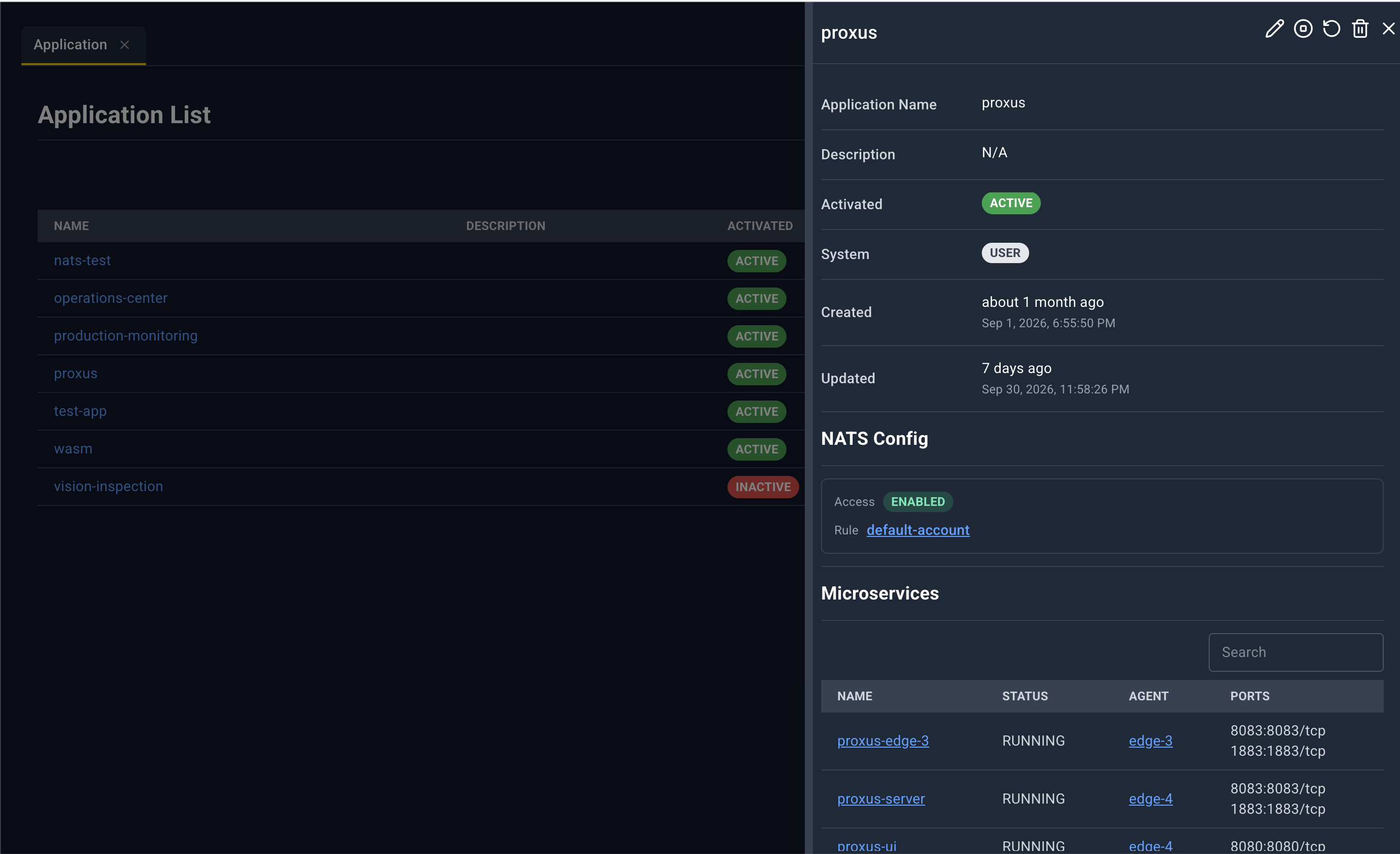
Title is the application name, or Application Details.
| Icon | Name | What happens |
|---|---|---|
| Edit | YAML tab Application YAML: plus the name. Save asks you to confirm. The warning explains that this save applies application-level fields (description, activation, system flag, NATS config). Microservice edits inside that YAML are not applied by this save. Upload a full application document when you need to change microservices. | |
| Start or Stop | Start when the application is inactive. Stop when it is active. Confirm dialog title is ACTIVE or INACTIVE plus the name. The confirm button uses that same word. | |
| Restart | Restarting Application plus the name. The console deactivates the application, waits, then activates it again. | |
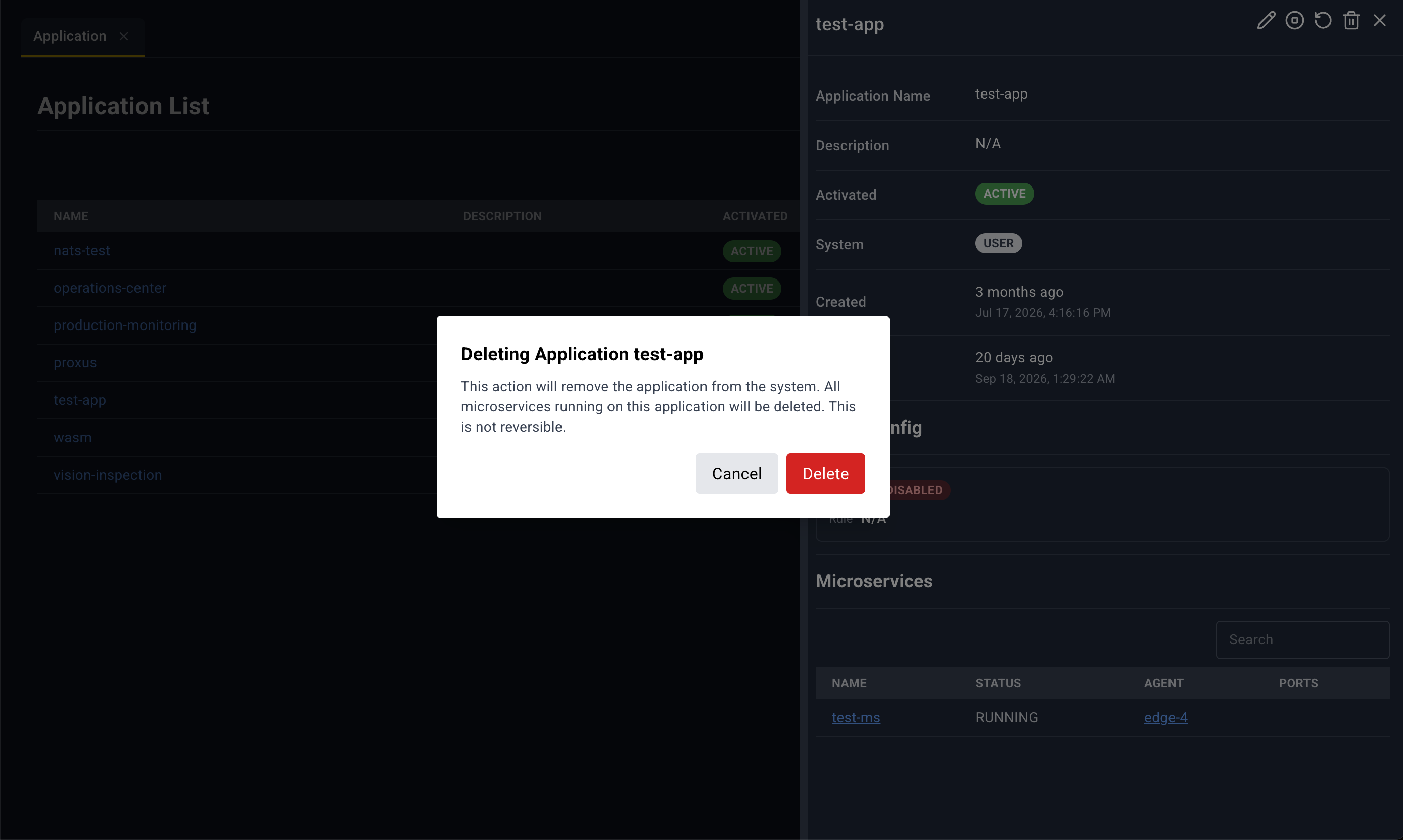
| Delete | Deleting Application plus the name. Deletes the application and its microservices. | |
| Close | Closes the panel. |
Fields:
- Application Name, Description, Activated, System (pill SYSTEM or USER), Created, Updated (relative time plus a full timestamp)
- NATS Config. No NATS config. when empty. Otherwise Access is ENABLED, DISABLED, or N/A, and Rule links to NATS Account Rules for that rule. See NATS account rules.
- Microservices. No microservices available. or a table:
| Column | Link |
|---|---|
| Name | Microservices list, that microservice |
| Status | Status text |
| Agent | Edgelet List, that Edgelet node |
| Ports | internal:external/protocol on each line |
System Application List
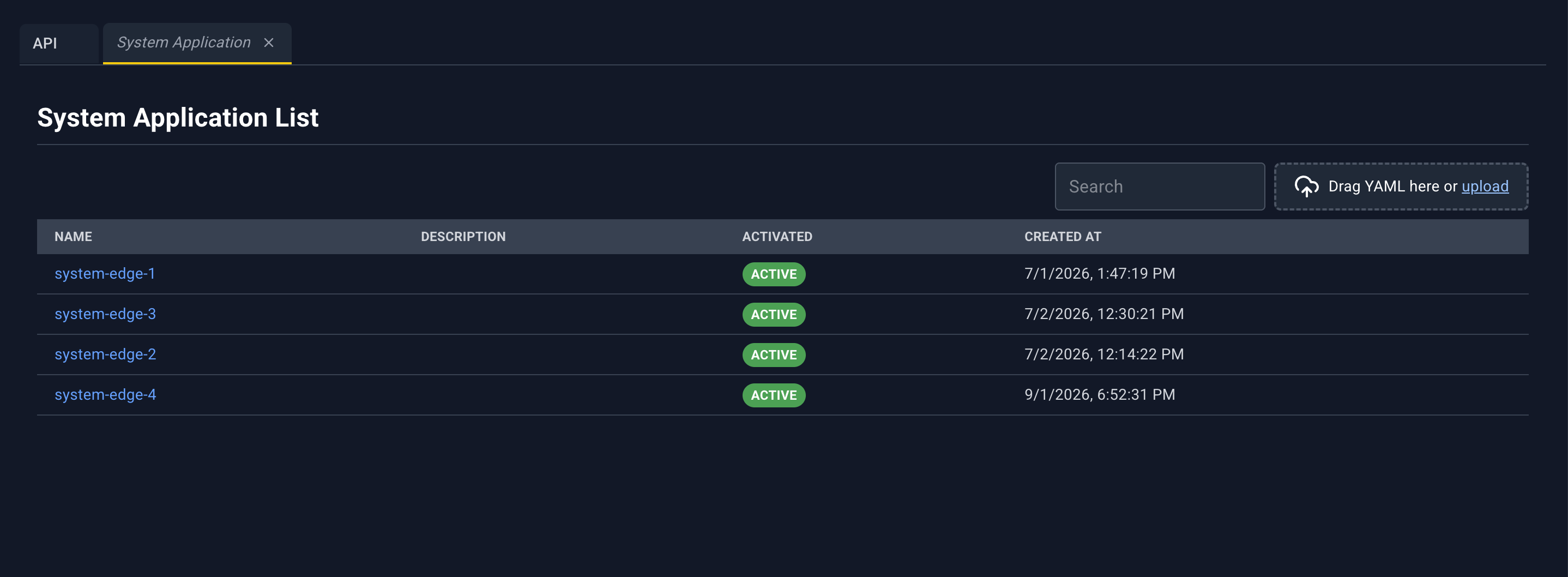
Same table as Application List, for system applications. The detail panel matches the user application panel, with two differences:
- The YAML tab is titled
System Application YAML:plus the name. - Microservice names link to System Microservices, not the user microservice list.
Header icons are the same: Edit, Start or Stop, Restart, Delete, Close.
Restart is titled Restart plus the name. Delete is titled Delete plus the name and uses the system application delete. Start and Stop use the same ACTIVE / INACTIVE confirm, and the message says the action will start or stop the application.
YAML upload on this page can create a system application. Editing an existing one from the pencil patches the application.
Microservices List
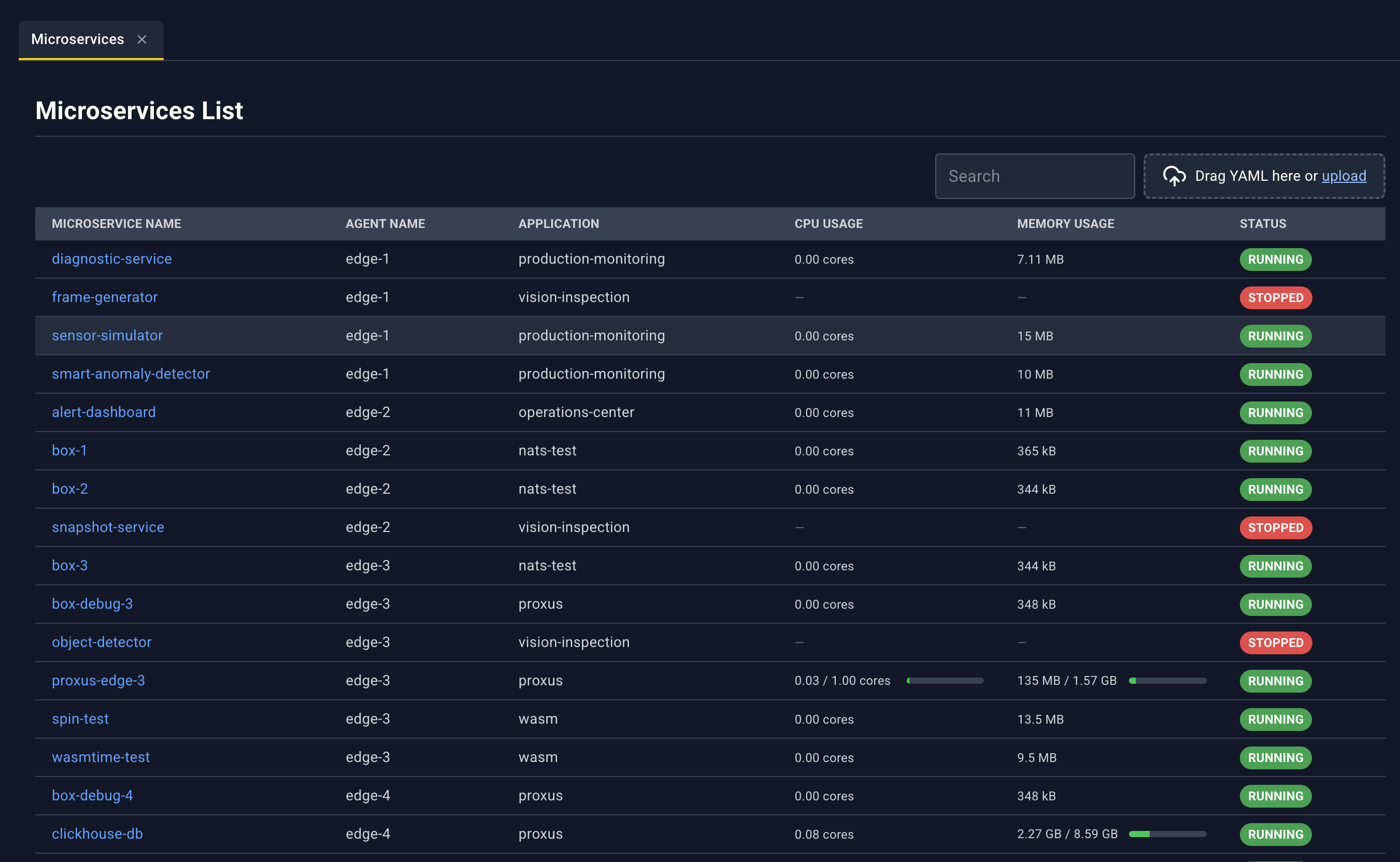
Every microservice from every user application, in one table. Rows sort with system Edgelet nodes first, then by Edgelet node name, then by microservice name.
| Column | What it shows |
|---|---|
| Microservice Name | Name. Click to open the detail panel. |
| Agent Name | Edgelet node the microservice is scheduled on |
| Application | Parent application |
| CPU Usage | Current CPU for the container |
| Memory Usage | Current memory for the container |
| Status | Status pill. PULLING is yellow and can include a percentage. |
Microservice detail panel
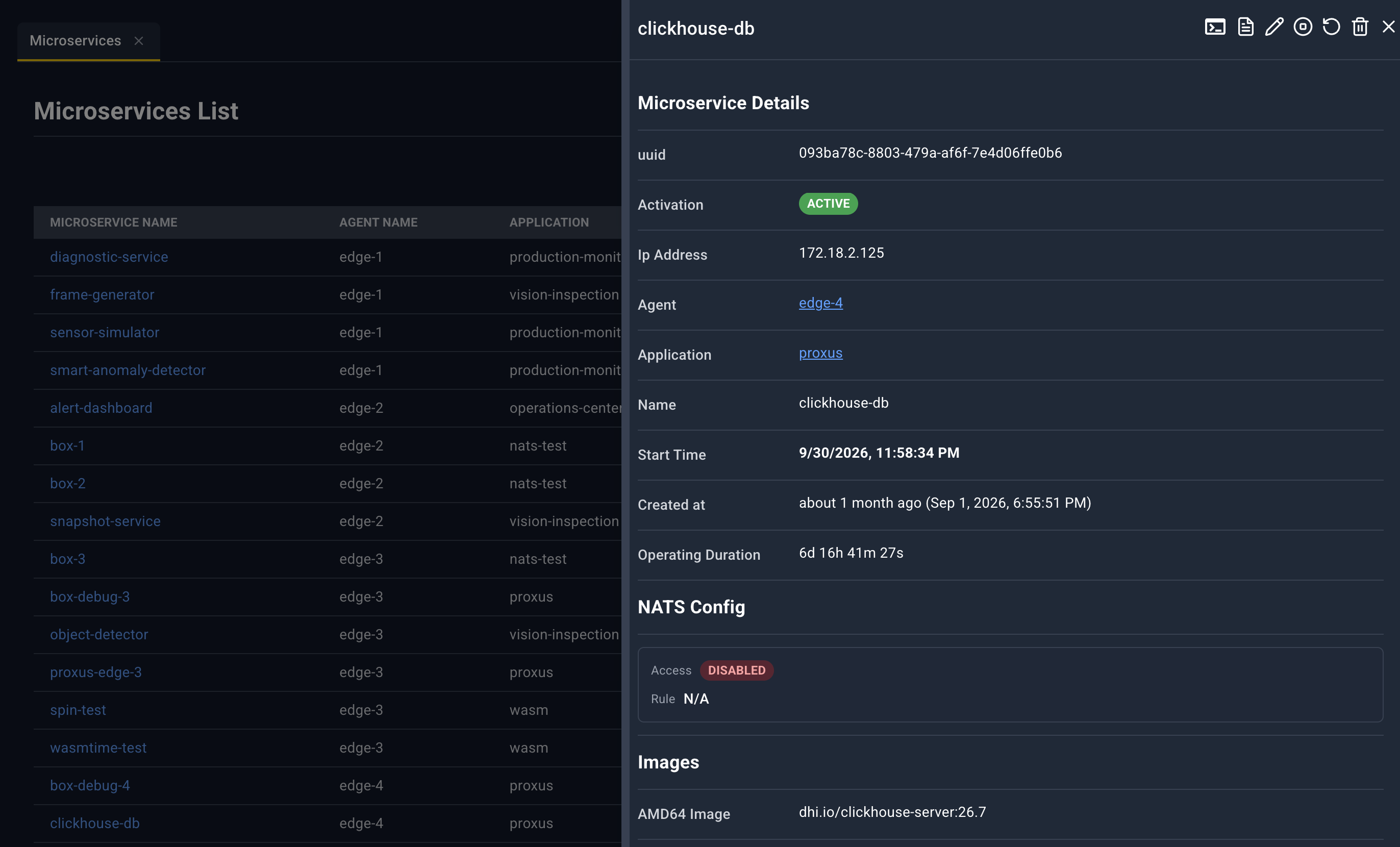
Title is the microservice name, or Microservice Details. The panel refreshes while it is open.
| Icon | Name | What happens |
|---|---|---|
| Terminal | Requires status RUNNING. Otherwise an error toast. Opens a bottom-drawer tab Microservice Shell: plus the application and name. See Bottom drawer. | |
| Logs | Configure Log Viewing for this microservice, then the log stream. | |
| Edit | YAML tab Microservice YAML: plus the application and name. Save updates this microservice. | |
| Start or Stop | Stop when the microservice is activated. Start when it is not. Confirm title is Stop or Start plus the name. | |
| Restart | Rebuilding Microservice plus the name. Confirm Rebuild. The image is pulled again and the microservice restarts. | |
| Delete | Deleting Microservice plus the name. | |
| Close | Closes the panel. |
Sections and links
Microservice Details
| Field | Notes |
|---|---|
| uuid | Microservice id |
| Activation | ACTIVE or INACTIVE |
| Ip Address | From the live status |
| Agent | Link to Edgelet List for agentId |
| Application | Link to Application List for that application |
| Name | Microservice name |
| Start Time | When the current run started |
| Created at | Creation time |
| Operating Duration | Uptime as days, hours, minutes, seconds |
NATS Config. Same shape as an application, but Rule links to NATS User Rules. See NATS user rules.
Images. AMD64 Image, ARM64 Image, RISCV64 Image, ARM Image. Registry links to Registries. Catalog Item Id links to Catalog Microservices. See Registries and catalog.
Container. Unset values show N/A.
| Field | Link |
|---|---|
| Runtime | Runtime Classes, when a runtime class name is set |
| Commands, Entrypoint, Working Dir | Process settings |
| Run As User, Run As Group | User and group |
| Read Only Root Filesystem | Yes or no |
| CPUs, Memory Limit, Memory Reservation, Memory Swap, SHM Size | Resource limits |
| CDI Devices | Chips |
| Host Network Mode, Privileged, Platform | Runtime flags |
Status. Status pill and Health Check Status. When the microservice has crash data, the panel also shows Current Error, Last Crash, Last Crash At, and Restarts.
Exec Session Ids (chips), Container Id, Pod Id (only when a pod id is present), Exec Status, Active Exec Session Id.
Resource Utilization. Container CPU, Container memory.
Ports
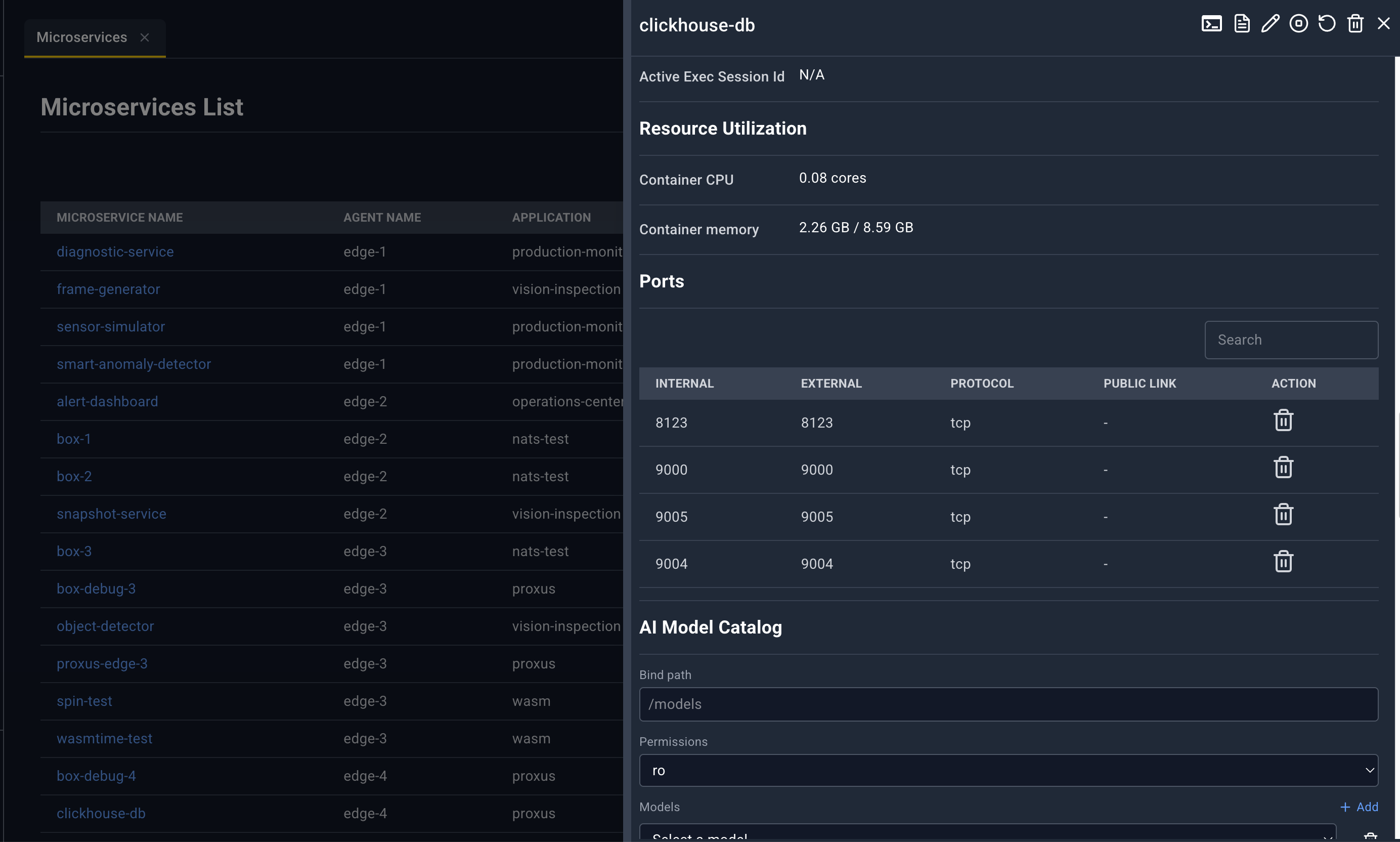
| Column | Meaning |
|---|---|
| Internal | Container port |
| External | Host port |
| Protocol | Protocol |
| Public Link | Opens the published address in the browser |
| Action | . Confirm Deleting Port plus the internal port. This action will remove the port from the microservice. |
AI Model Catalog
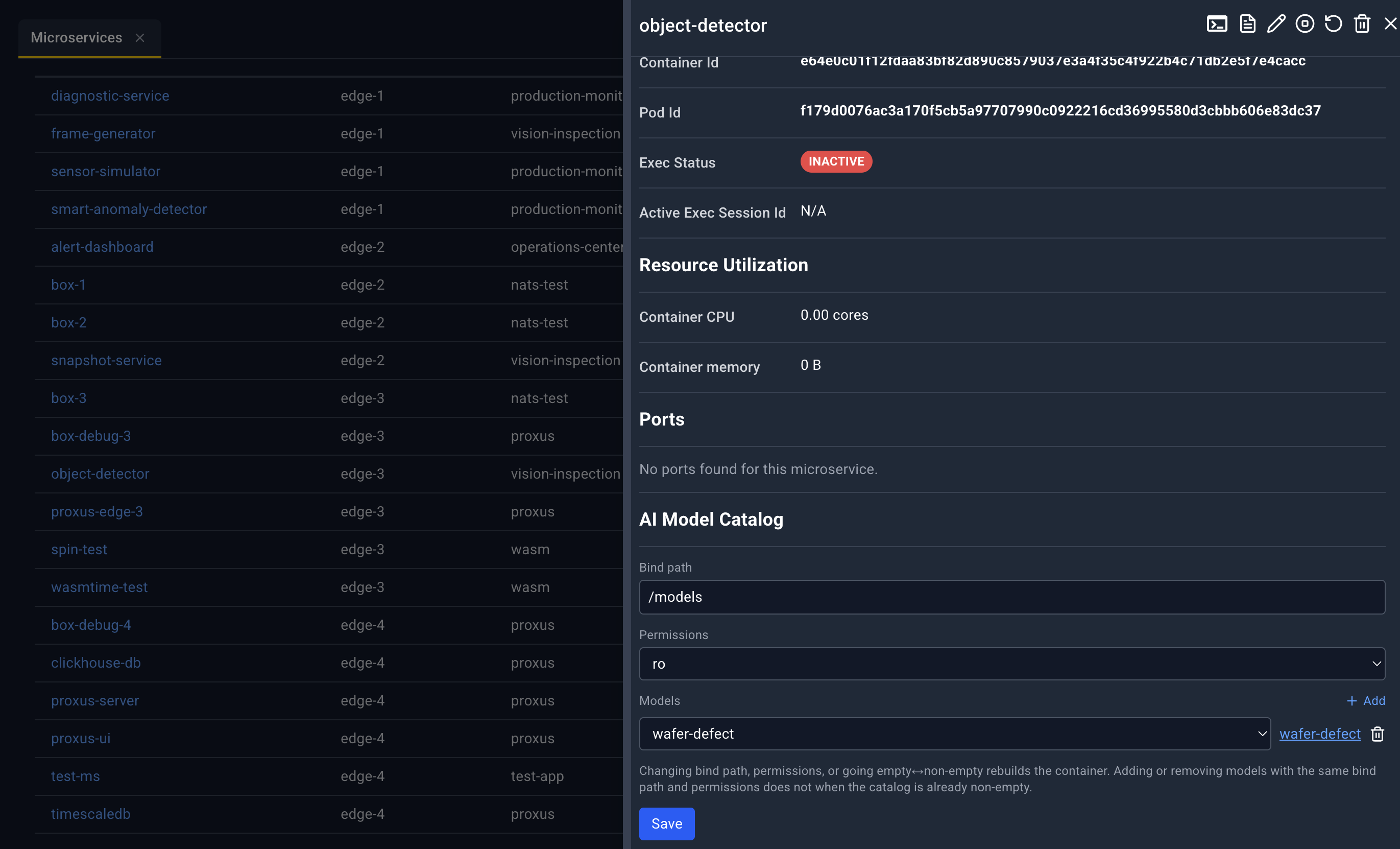
Only on user microservices. How a model is declared: Models and knowledge.
- Bind path, placeholder
/models - Permissions,
roorrw - Models. Add, a Select a model picker, a link to that model in AI Model Catalog, and Remove model
- A hint explains that changing the bind path or permissions, or going from no models to some (or the reverse), rebuilds the container
- Save writes the catalog attachment. Success toast: AI Model Catalog updated.
AI Knowledge Catalog
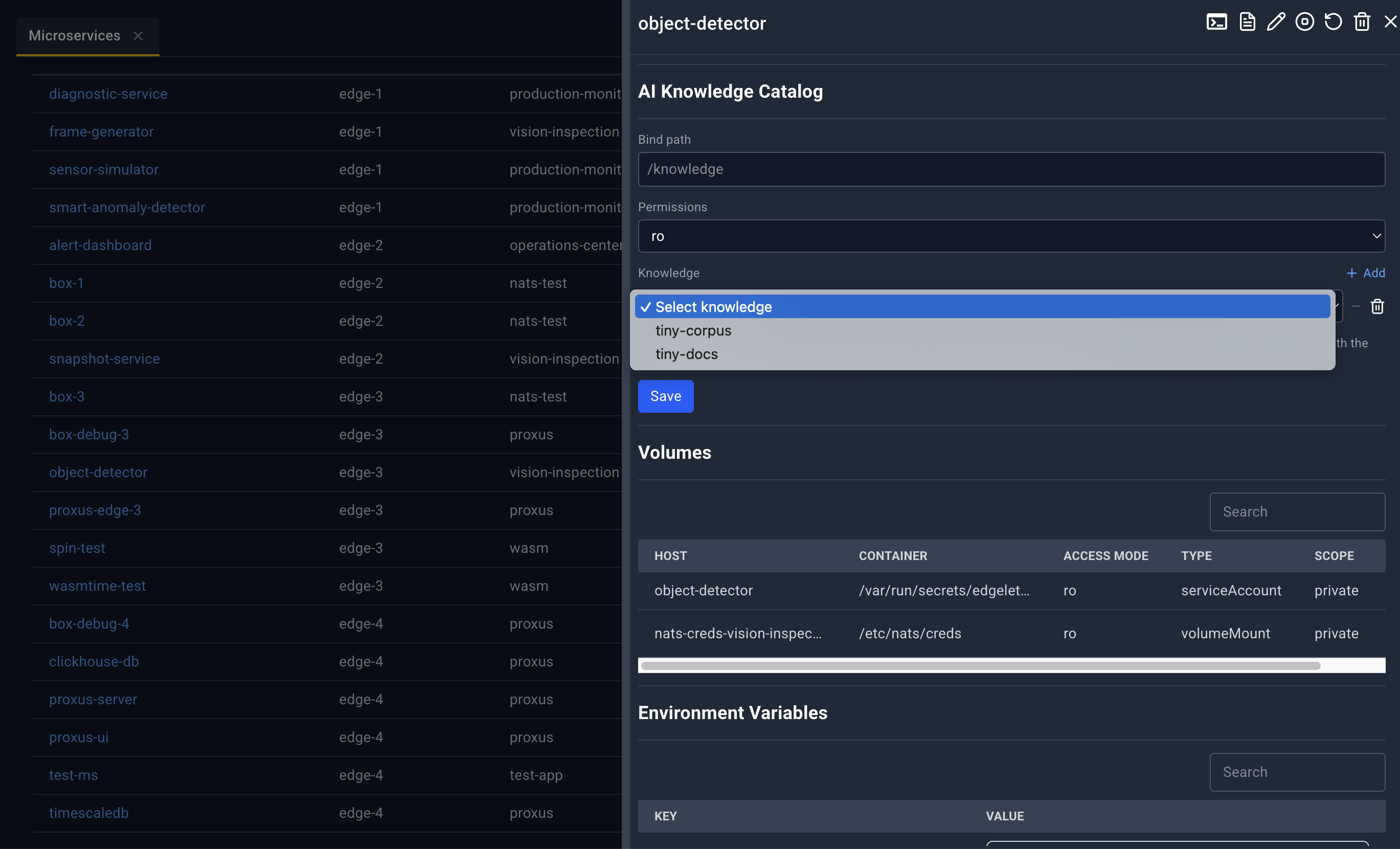
- Bind path, placeholder
/knowledge - Permissions
- Knowledge rows. Select knowledge, a link to AI Knowledge Catalog, Remove knowledge
- The same style of rebuild hint as models
- Save updates the attachment. The console rejects a bind path that collides with models, volumes, or tmpfs and shows that error in a toast.
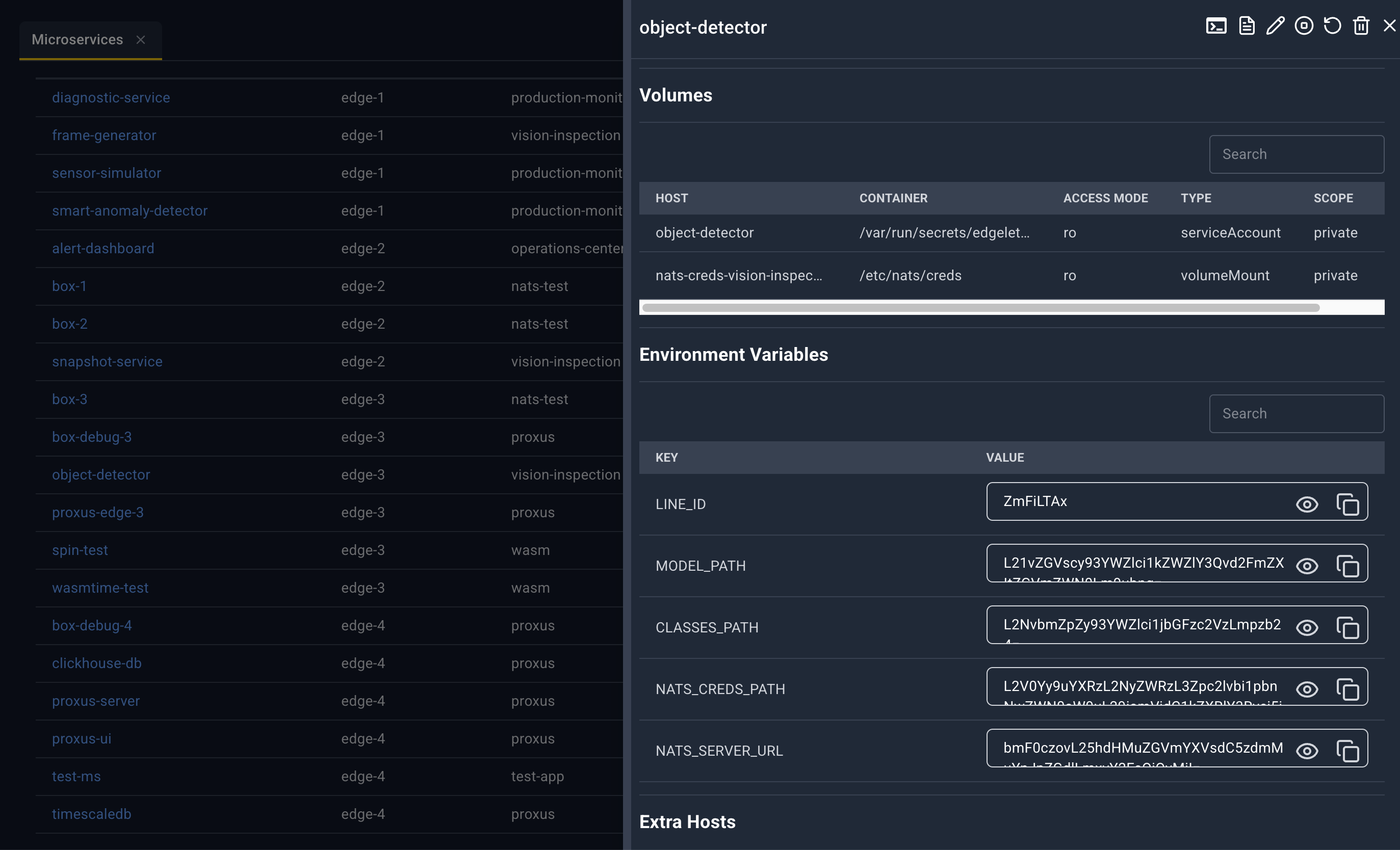
Volumes
| Column | Meaning |
|---|---|
| Host | Host path or source |
| Container | Container destination |
| Access Mode | How the mount is exposed |
| Type | Volume type |
| Scope | Scope |
| Action | , except for type serviceAccount (those mounts are injected and cannot be removed here) |
Confirm Deleting Volume plus the host path. Success toast: Volume Deleted. The panel closes after a successful delete.
Volume mounts are declared in Config, secrets, and volumes.
Environment variables and extra hosts
Environment Variables. Key and Value. Values can be revealed or copied.
Extra Hosts. Name, Address, Value.
Config
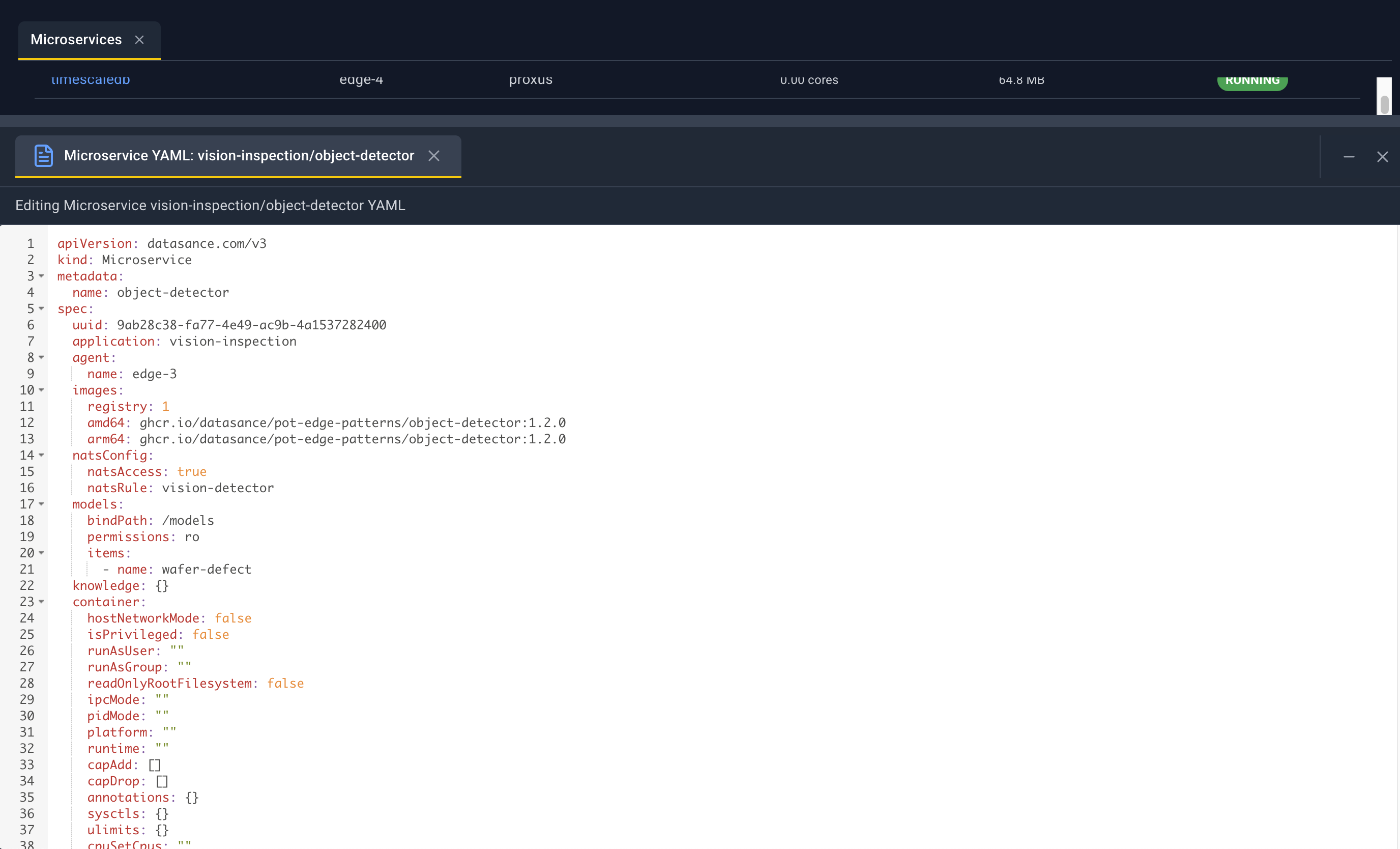
A YAML editor for this microservice config. The heading shows the config id. Edit the text and a pencil appears. That saves the config. deletes the config.
Log dialog
Same Configure Log Viewing dialog as on an Edgelet node: tail, follow, since and until, and the presets Last 100 lines, Last 1000 lines, Last hour, All logs. The last choices you made for microservices are remembered in the browser.
System Microservices List
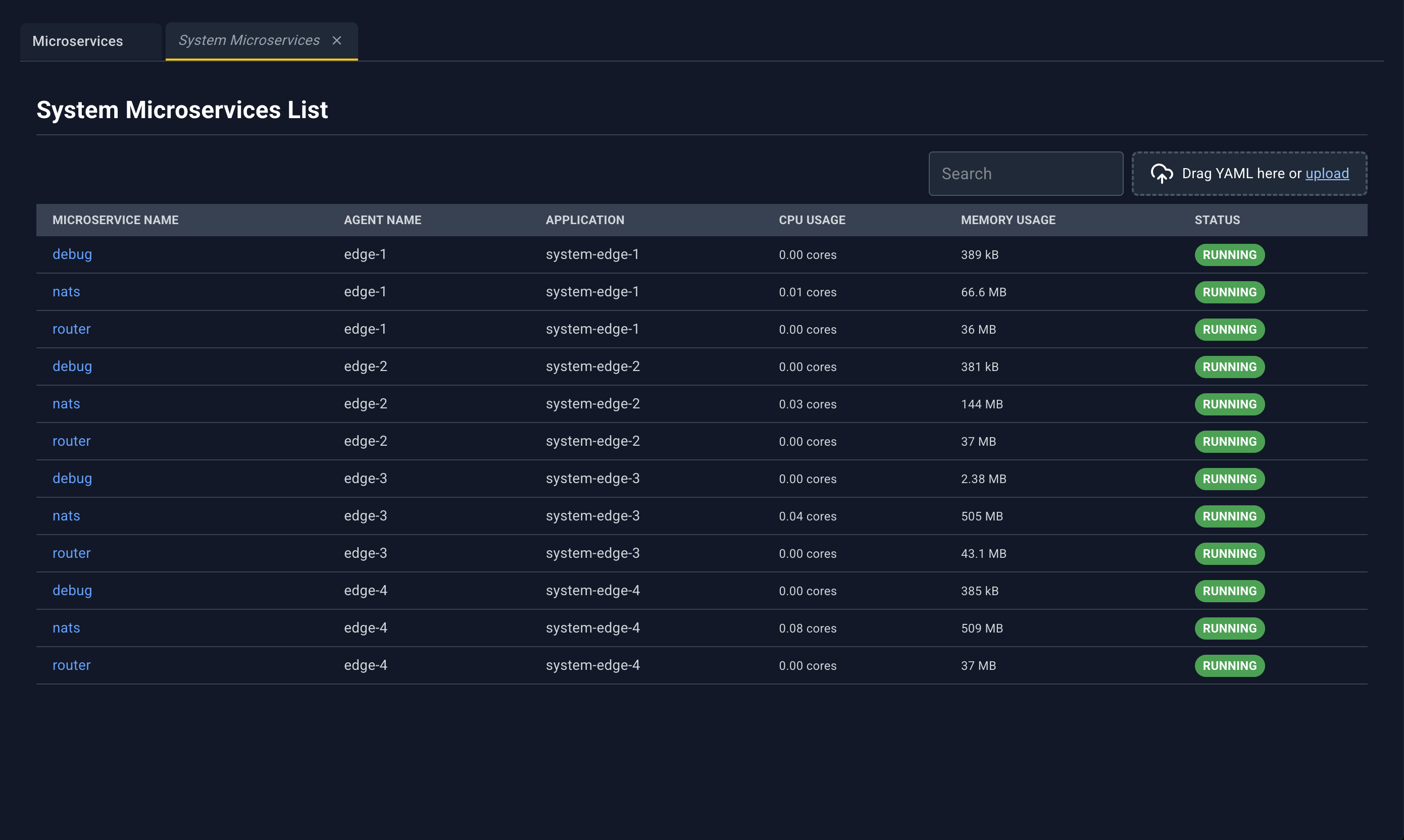
Same columns as Microservices List. A microservice that is the controller shows a Controller pill beside the name.
The detail panel matches the user microservice panel, with these differences:
| Area | System microservice behavior |
|---|---|
| Application link | Opens System Application List |
| Container section | Not shown |
| AI Model Catalog and AI Knowledge Catalog | Not shown |
| Terminal | Shell title starts with System Microservice Shell: |
| Logs | System microservice log stream |
| Edit | YAML tab System Microservice YAML: plus the application and name. Save updates the system microservice. |
| Start / Stop | Not on this panel |
| Restart | Rebuilds the system microservice. Dialog title Rebuild plus the name. |
| Delete | Hidden when the microservice is the controller. Otherwise Delete plus the name. |
| Port trash | Hidden on the controller microservice. Confirm title Delete Port plus the internal port, and the message refers to the port mapping. |
| Volume trash | Hidden on the controller, and hidden for serviceAccount mounts |
| Config trash | Hidden on the controller |
YAML upload on this page refreshes the microservice lists. The pencil on an existing system microservice updates that microservice. It does not offer a create path from the editor.