Catalog and templates
These pages live in the Config group. They describe images, models, knowledge, and the templates you deploy from. Every list has Search and the YAML dropzone. None of them has a Create button. You add records by uploading YAML. You deploy a running workload from a template with Publish.
| Page | Sidebar title | Address | Deep link |
|---|---|---|---|
| Registries | Registries | /#/config/Registries | registryId |
| Catalog Microservices | Catalog Microservices | /#/config/CatalogMicroservices | catalogItemid |
| AI Model Catalog | AI Model Catalog | /#/config/Models | modelName |
| AI Knowledge Catalog | AI Knowledge Catalog | /#/config/Knowledge | knowledgeName |
| Application Templates | App Templates | /#/config/AppTemplates | - |
| Microservice Templates | Microservice Templates | /#/config/MicroserviceTemplates | microserviceTemplateName |
Click the name (or the URL, on Registries) to open the detail panel.
Registries
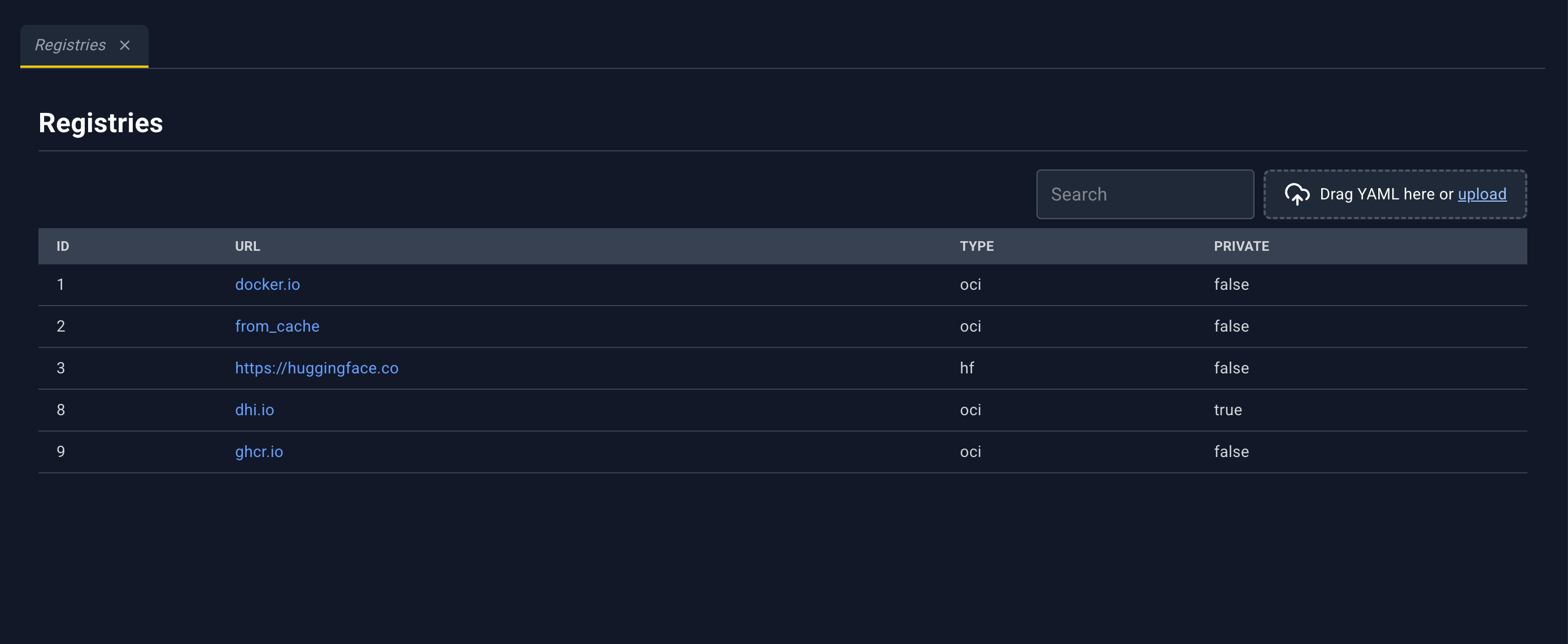
Registries hold the credentials and TLS settings used when the cluster pulls images, models, or knowledge. How a registry is declared: Registries and catalog.
| Column | What it shows |
|---|---|
| ID | Registry id |
| URL | Registry URL. Click to open the detail panel. |
| Type | Registry type. An empty type is shown as oci. |
| PRIVATE | true when the registry is private, false when it is public |
Registry detail panel
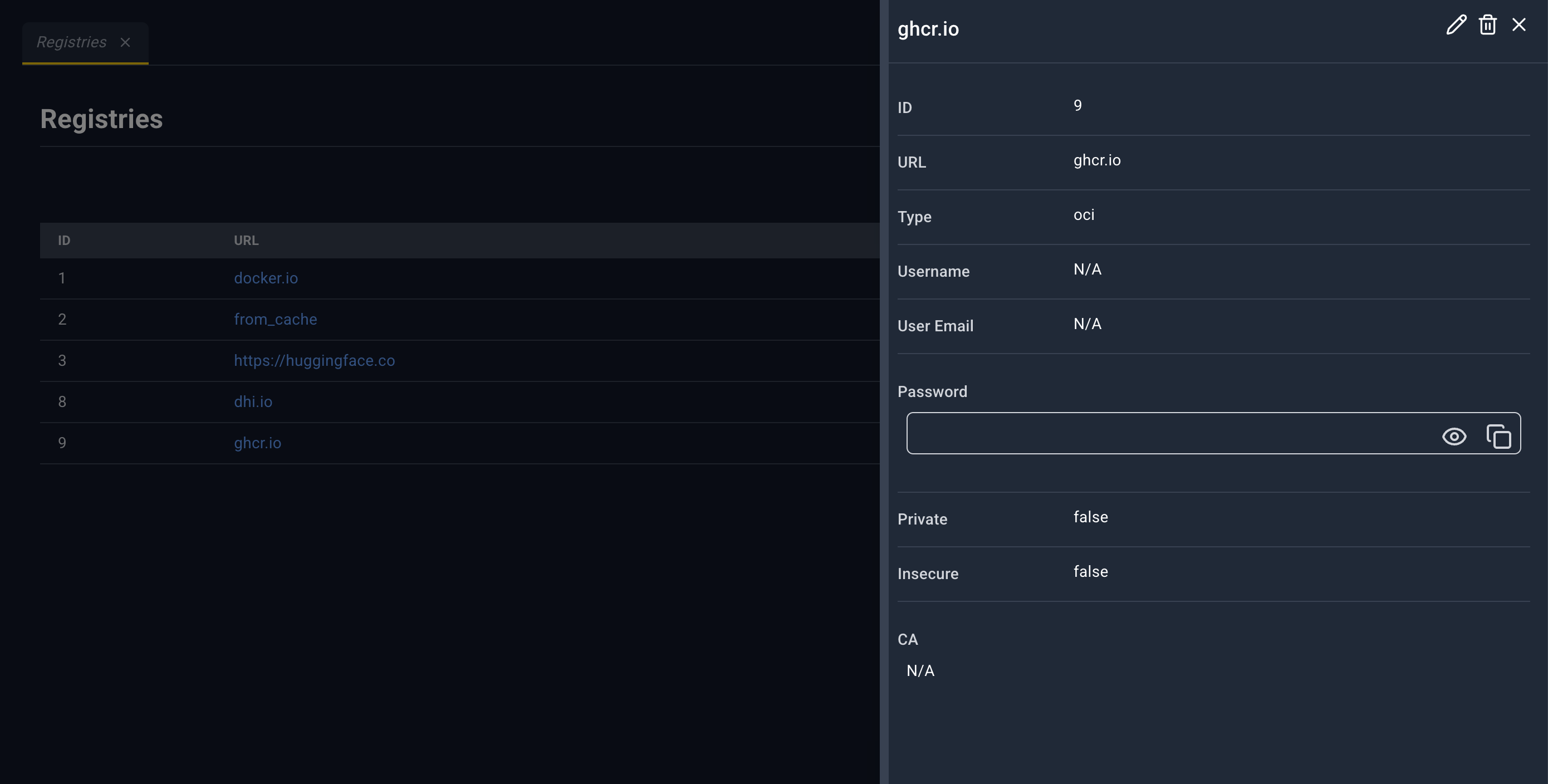
Title is the registry URL.
| Icon | Name | What happens |
|---|---|---|
| Edit | Registry YAML in the bottom drawer. Save updates the registry. | |
| Delete | Deleting Registry for the URL or id. The message explains the registry is removed when nothing still uses it. | |
| Close | Closes the panel. |
Fields: ID, URL, Type, Username, User Email, Password (hidden, with reveal and copy), Private, Insecure, CA.
CA shows the certificate as stored. The eye (Toggle visibility) decodes it to PEM text. Copy to clipboard copies the visible value and briefly reads Copied!.
There are no links to other resources inside this panel. Catalog items, models, and knowledge link here.
Catalog Microservices
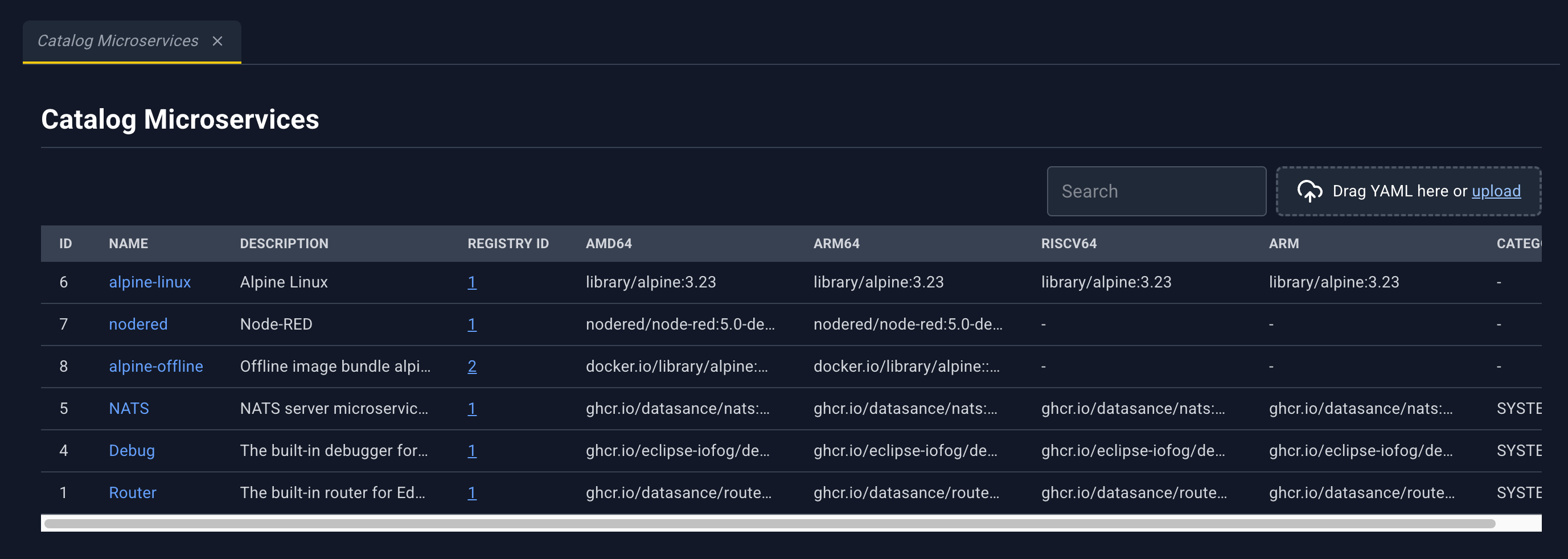
A catalog item is a named microservice image, with up to one image per architecture, that templates and workloads can reference. See Registries and catalog.
| Column | What it shows |
|---|---|
| ID | Catalog id |
| Name | Name. Click to open the detail panel. |
| Description | Description |
| Registry Id | Link to Registries for that registry |
| amd64, arm64, riscv64, arm | Image for that architecture, or - |
| Category | Category, including system catalog items |
Catalog detail panel
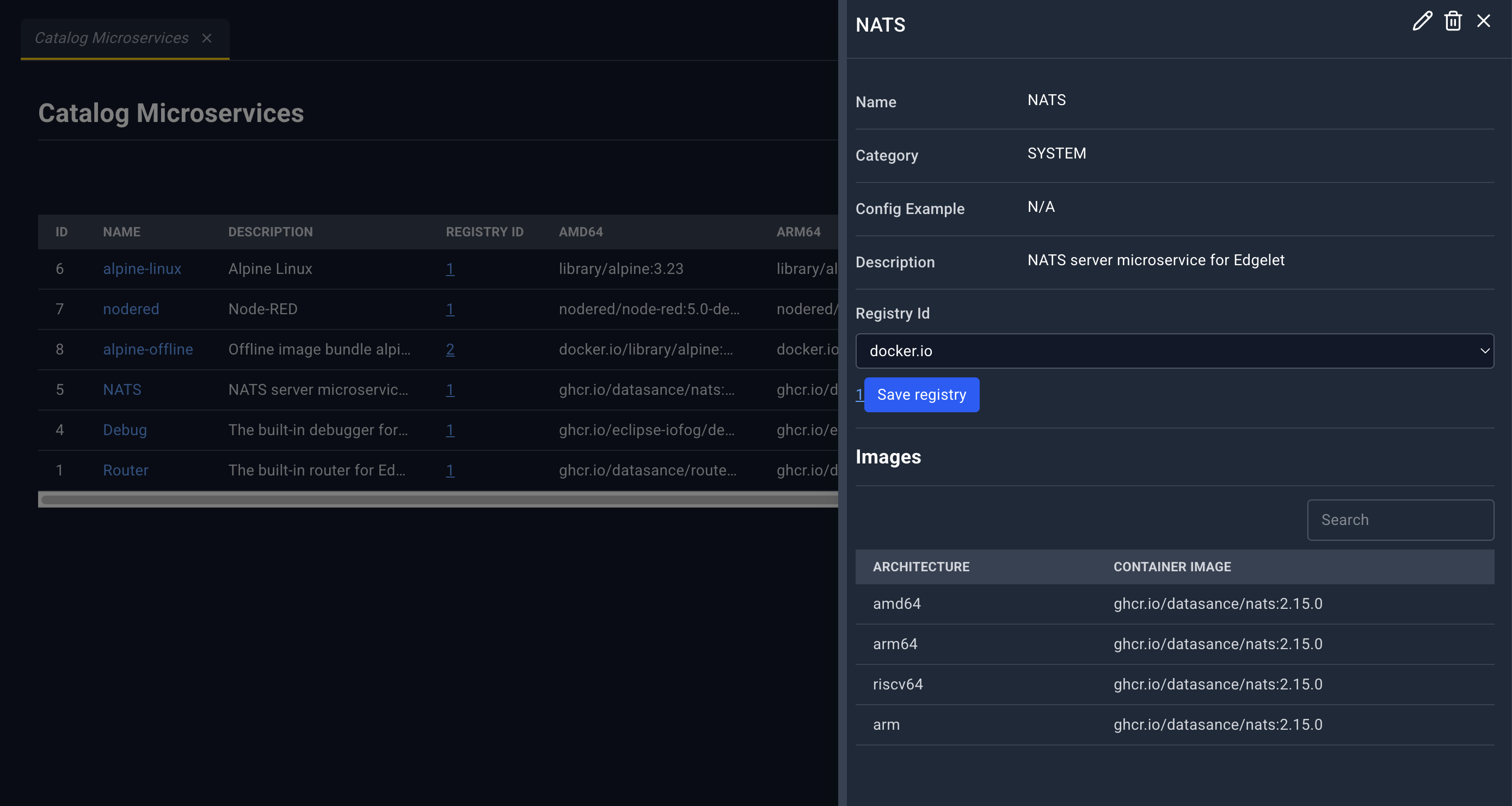
Title is the catalog name.
| Icon | Name | What happens |
|---|---|---|
| Edit | Catalog item YAML. Save updates the item. | |
| Delete | Deleting Catalog Microservice plus the name. The message covers system category and in-use cases. | |
| Close | Closes the panel. |
Fields: Name, Category, Config Example, Description, Registry Id, then section Images with Architecture and Container Image.
Registry Id is a picker, not only a label.
- The first option is Select an image registry. The list is OCI registries.
- The current registry is a link to the Registries page.
- Save registry (or Saving… while the request runs) writes the choice. It stays disabled until an OCI registry is selected.
A loading overlay can say Catalog Updating... or Catalog Adding... during those writes.
AI Model Catalog
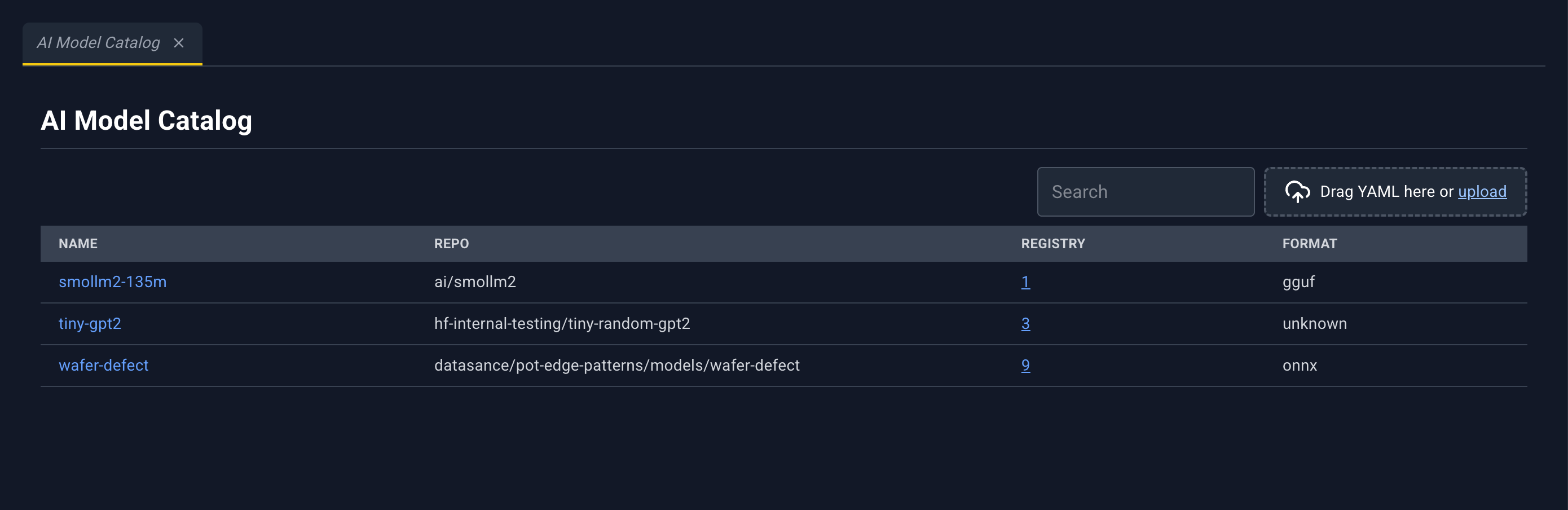
Fleet catalog of AI models. Linking a model to an Edgelet node makes it available for microservices on that node to mount. The microservice page is where you attach a catalog model to a container. This page is where you attach it to nodes. How a model is declared: Models and knowledge.
| Column | What it shows |
|---|---|
| Name | Model name. Click to open the detail panel. |
| Repo | Repository |
| Registry | Link to Registries |
| Format | Model format |
Model detail panel
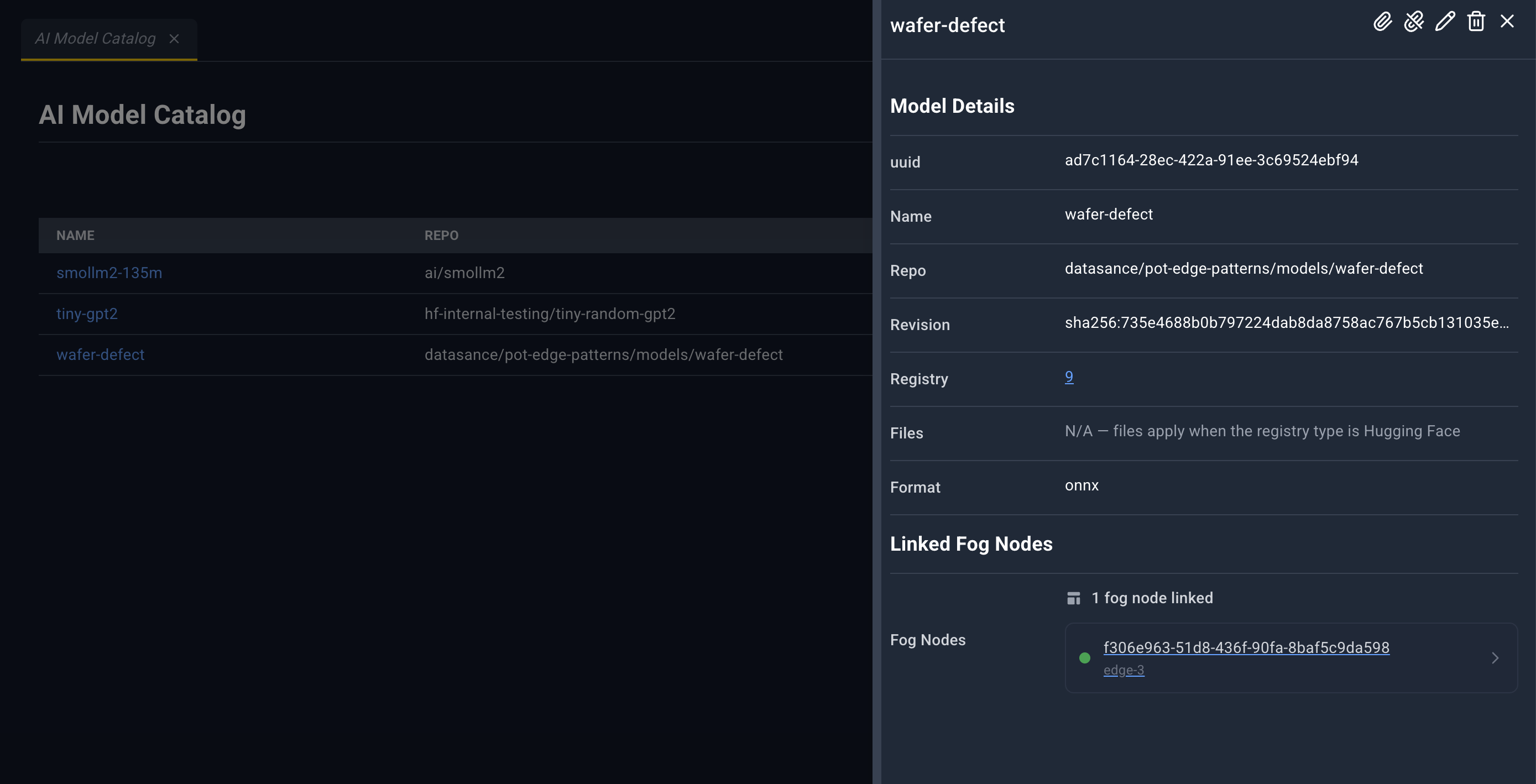
Title is the model name.
| Icon | Name | What happens |
|---|---|---|
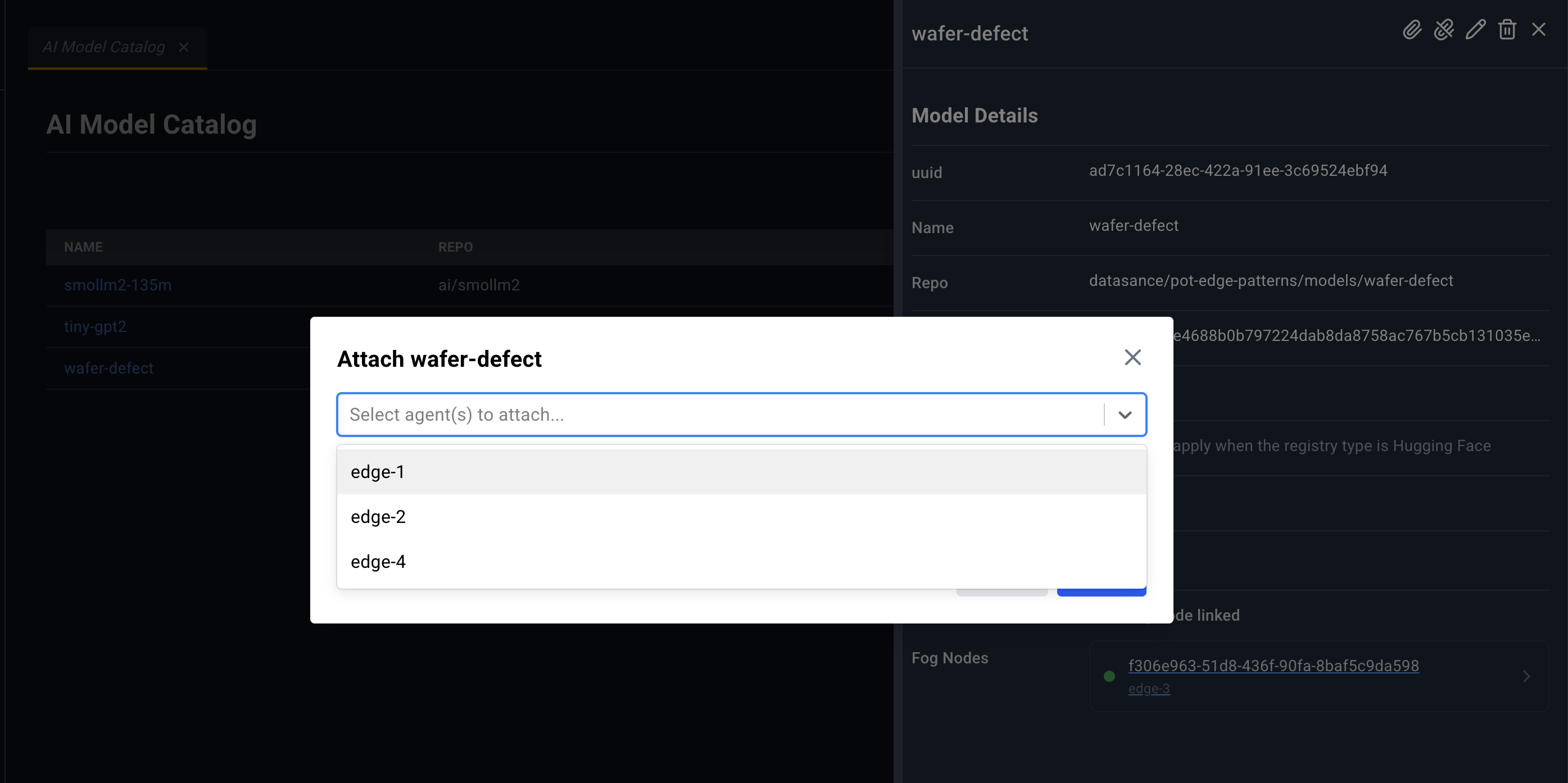
| Attach | Attach plus the name. Multi-select Select agent(s) to attach.... Confirm Attach. Toast Model Attached. | |
| Detach | Detach from the name. Select agent(s) to detach.... Confirm Detach. Toast Model Detached. | |
| Edit | Model YAML. For a Hugging Face registry, the YAML includes the file list. | |
| Delete | Deleting Model plus the name. A model still bound to microservices can be refused. | |
| Close | Closes the panel. |
Model Details: uuid, Name, Repo, Revision, Registry (link), Files, Format.
Files lists files when the registry type is Hugging Face. Otherwise the value is N/A. Files apply when the registry type is Hugging Face.
Linked Fog Nodes. No fog nodes linked, or a count and a link per Edgelet node to Edgelet List.
AI Knowledge Catalog
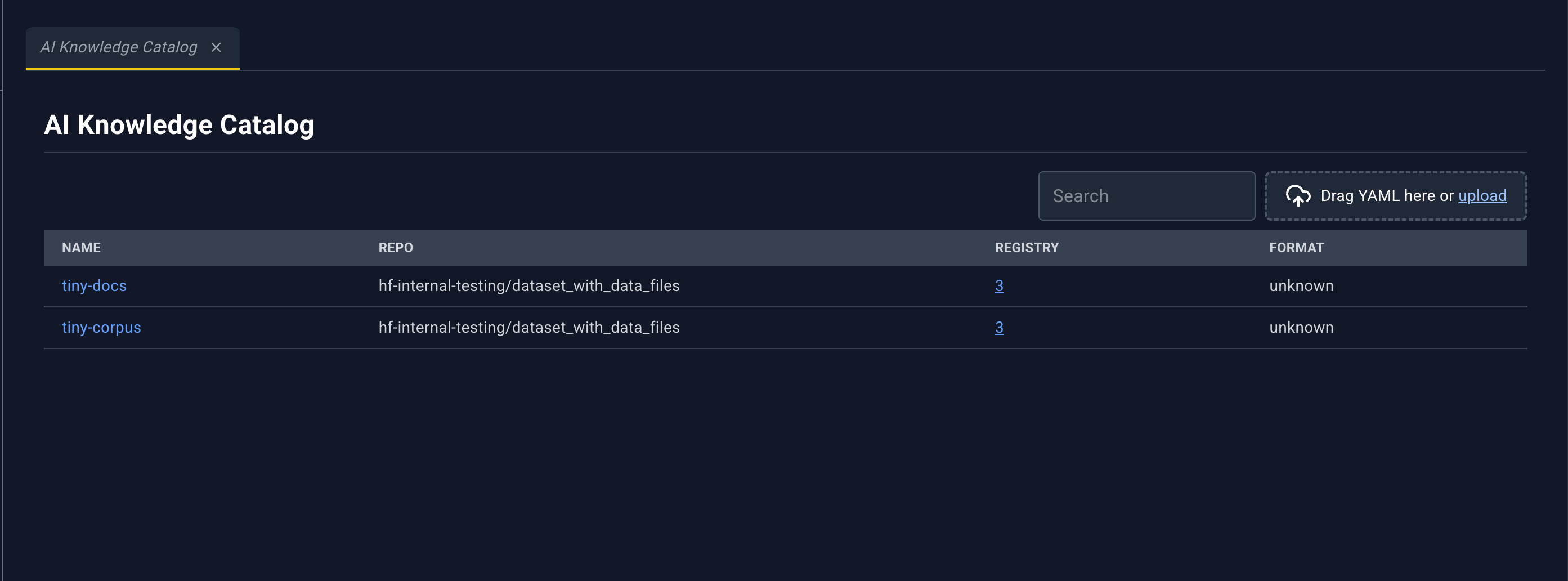
Same page shape as AI Model Catalog, for knowledge and document bundles. Any container engine can receive a knowledge attachment. The microservice editor mounts it into a user microservice. See Models and knowledge.
| Column | What it shows |
|---|---|
| Name | Knowledge name. Click to open the detail panel. |
| Repo | Repository |
| Registry | Link to Registries |
| Format | Format |
Knowledge detail panel
Title is the knowledge name. Icons match models: Attach, Detach, Edit, Delete, Close.
Toasts: Knowledge attached, Knowledge detached. Delete is titled Deleting Knowledge plus the name.
Knowledge Details: uuid, Name, Repo, Revision, Registry (link), Files (same Hugging Face rule as models), Format, and a format hint:
Known values: markdown, pdf, jsonl, parquet, arrow, sqlite, faiss, chroma, lance. Any other text is stored as unknown. Empty means omitted.
Linked Fog Nodes works the same way as on a model. Each node name opens Edgelet List.
Attach and detach dialogs use the same placeholders as models.
Application Templates
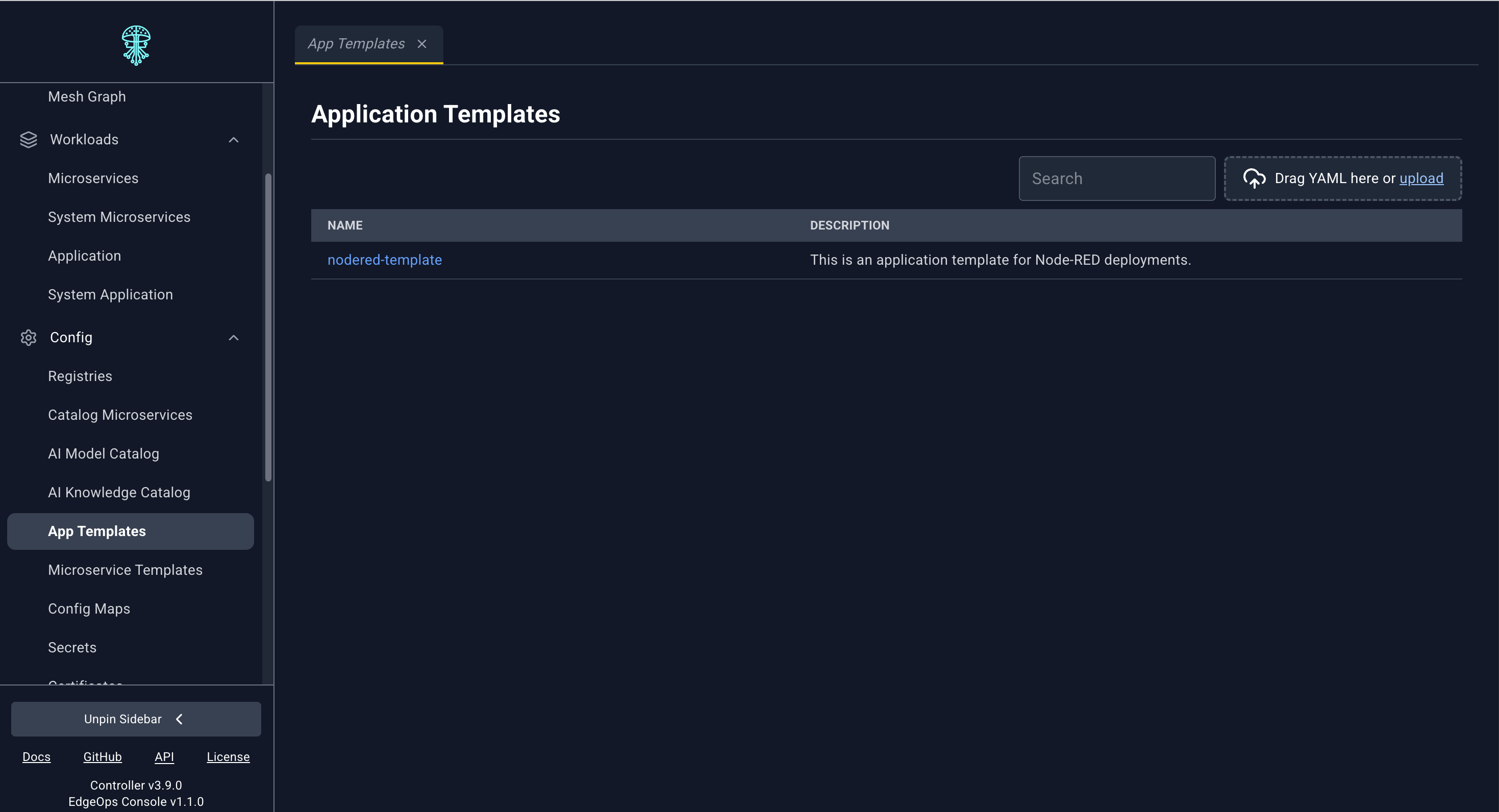
A template is a blueprint: application metadata, the microservices it will create, and variables the operator fills in at deploy time. How a template is declared: Templates.
| Column | What it shows |
|---|---|
| Name | Template name. Click to open the detail panel. |
| Description | Description |
Template detail panel
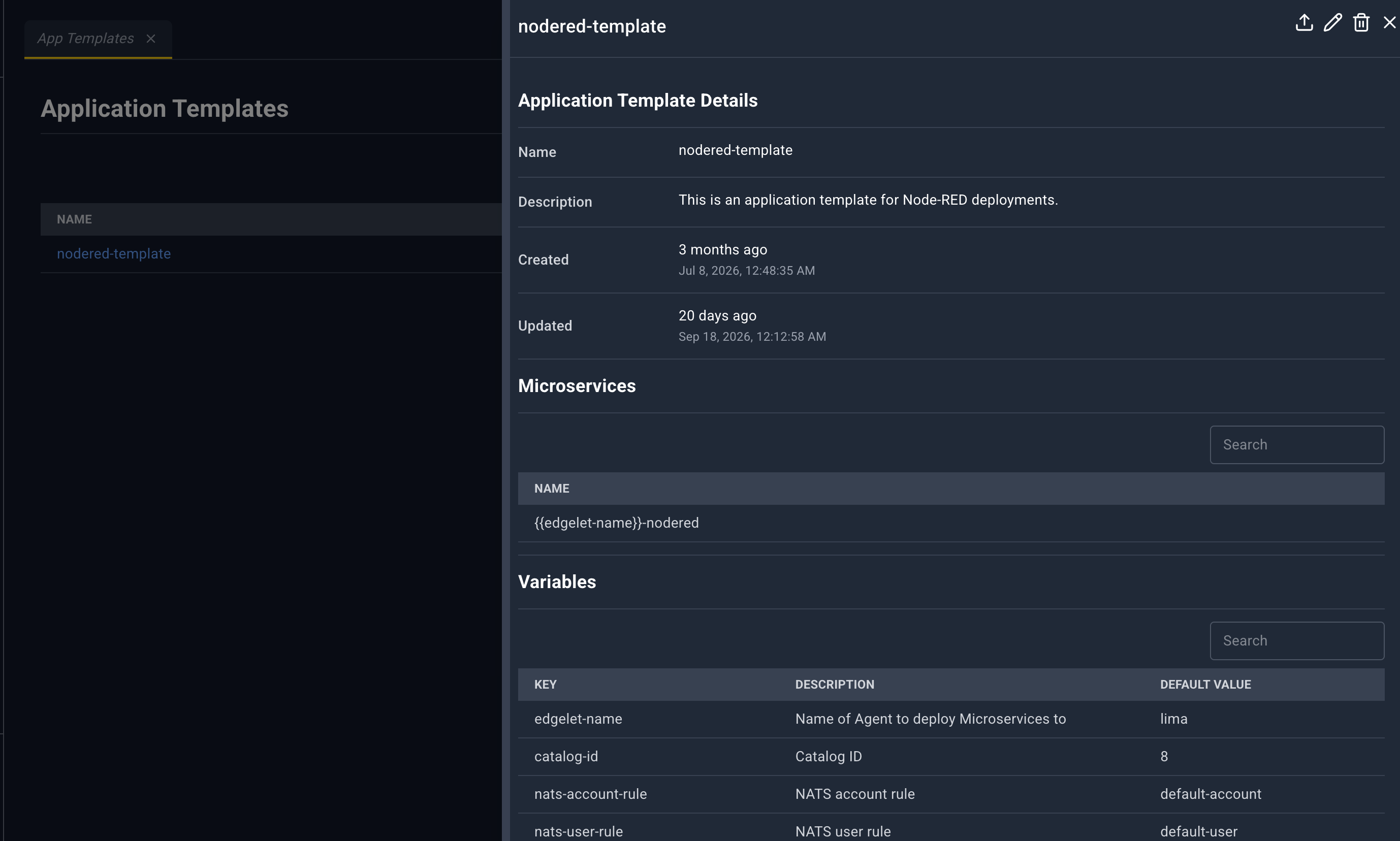
The panel opens wide. Title is the template name, or Application Templates Details.
| Icon | Name | What happens |
|---|---|---|
| Publish | Opens the deploy form in the bottom drawer. Tab title Application Template Form: plus the name. | |
| Edit | Application template YAML. Save updates the template. | |
| Delete | Delete plus the name. Removes the template. This does not delete applications already deployed from it. | |
| Close | Closes the panel. |
Application Template Details: Name, Description, Created, Updated.
Microservices: a name table, or No microservices available.
Variables: Key, Description, Default Value (italic No default when empty), or No variables available.
Deploy form
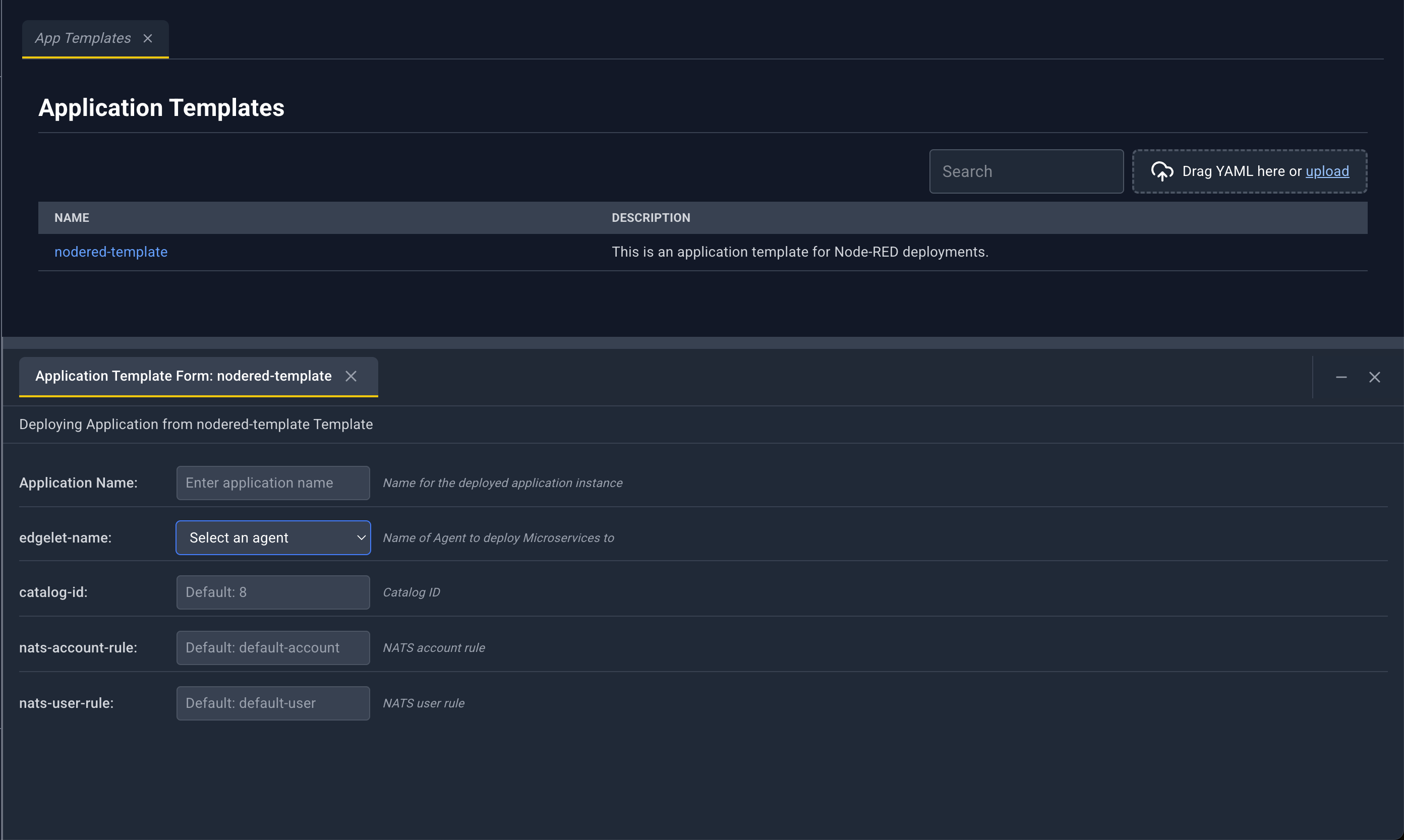
The drawer title reads Editing Deploy an application from the template name Template.
- Application Name, placeholder Enter application name. Help text: Name for the deployed application instance. Required.
- Each template variable is a row: the key, its description, and an input.
- A variable that expects an Edgelet node is a Select an agent list of the cluster Edgelet nodes.
- A boolean variable is Select, true, or false.
- A read-only variable says Variable plus the key is not configurable.
Save in the drawer asks Deploy plus the name: deploy an application from this template. Cancel returns to the form. Deploy runs it. Success toast: Application deployed!. If the name is empty, the form reports Application name is required.
Microservice Templates
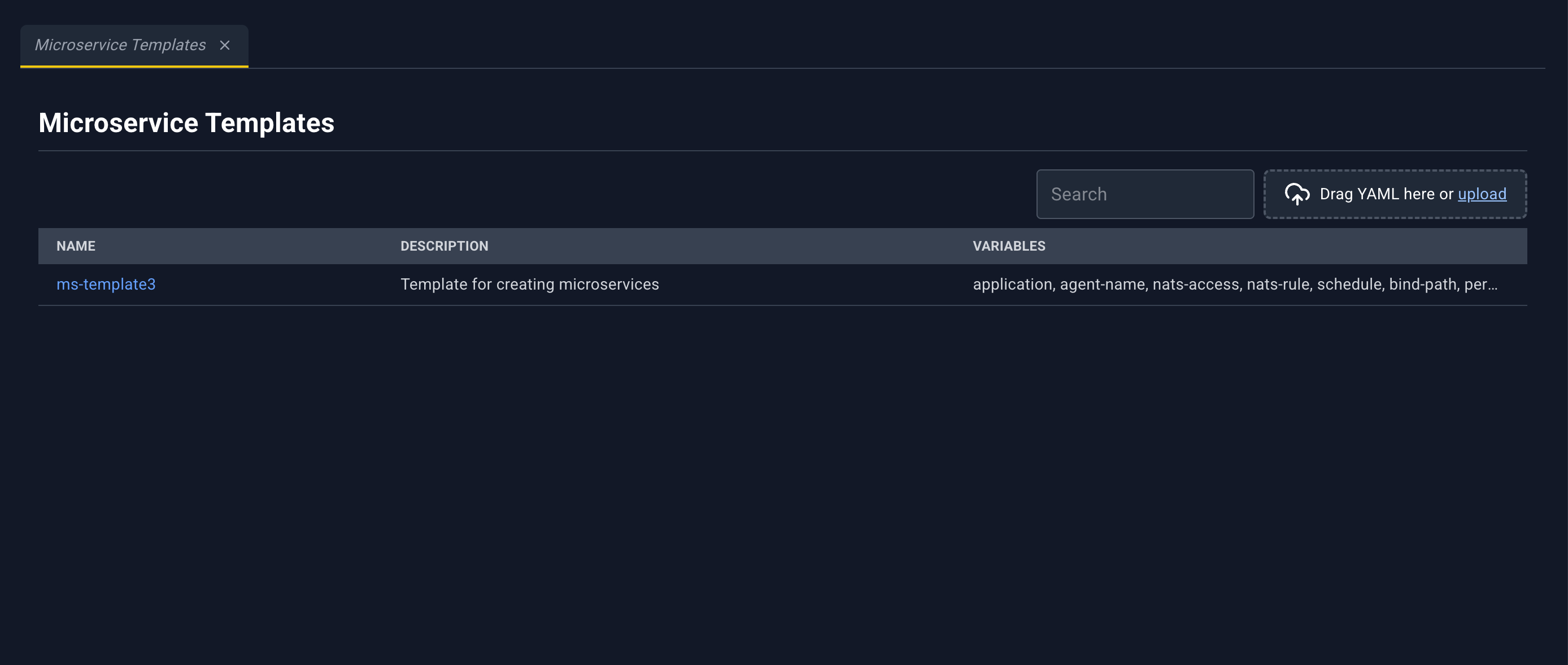
A reusable microservice definition plus variables. Deploy creates one microservice instance. See Templates.
| Column | What it shows |
|---|---|
| Name | Template name. Click to open the detail panel. |
| Description | Description |
| Variables | Comma-separated variable keys, or - |
Template detail panel
Wide panel. Microservice Template Details: Name, Description, and Created / Updated when those timestamps exist. Variables uses the same Key / Description / Default Value table as application templates.
| Icon | Name | What happens |
|---|---|---|
| Publish | Drawer tab Microservice Template Form: plus the name. | |
| Edit | Microservice template YAML. | |
| Delete | Delete plus the name. | |
| Close | Closes the panel. |
Deploy form
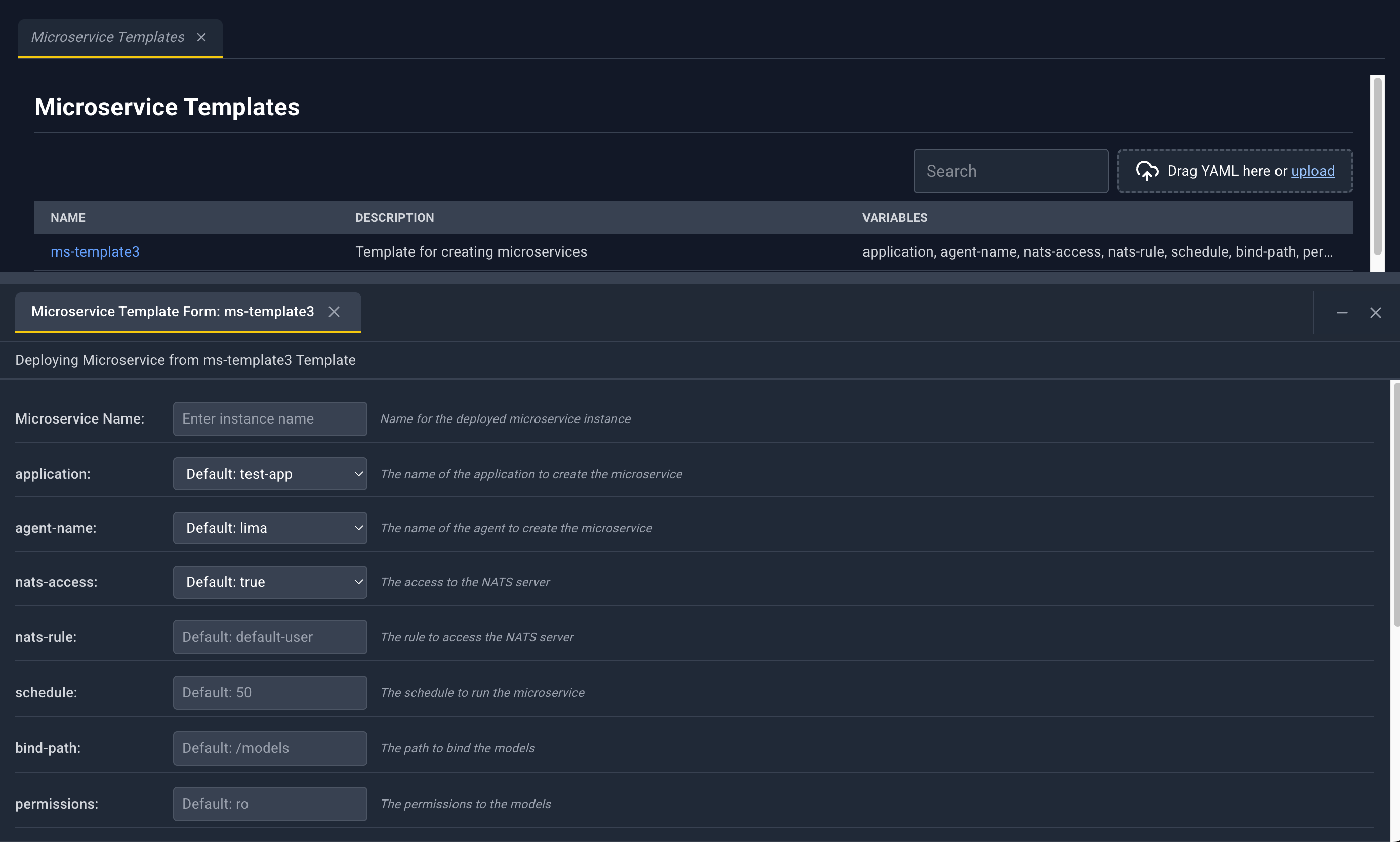
Drawer title: Editing Deploy a microservice from the template name Template.
- Microservice Name, placeholder Enter instance name
- Application. Select an application, unless a variable already captures the application
- Agent. Select an agent, unless a variable already captures the Edgelet node
- Remaining variables follow the application-template rules (Edgelet node picker, boolean, read-only)
Deploy stays unavailable until the instance name, application, and Edgelet node are all set. Confirm Deploy plus the name. Success toast: Microservice deployed!.