Identity and sign-in
Who can open the console depends on how the Controller is configured. Setup is in Embedded OIDC and External OIDC.
- External identity provider. You sign in with the provider. The IAM group is hidden. My Account is a single sidebar item, and an amber banner says user and group administration is not available in the console.
- Built-in identity. The IAM group contains My Account, Users, and Groups. Administrators create users and groups here. Some users must change their password or enroll MFA before the rest of the console unlocks.
Sign in
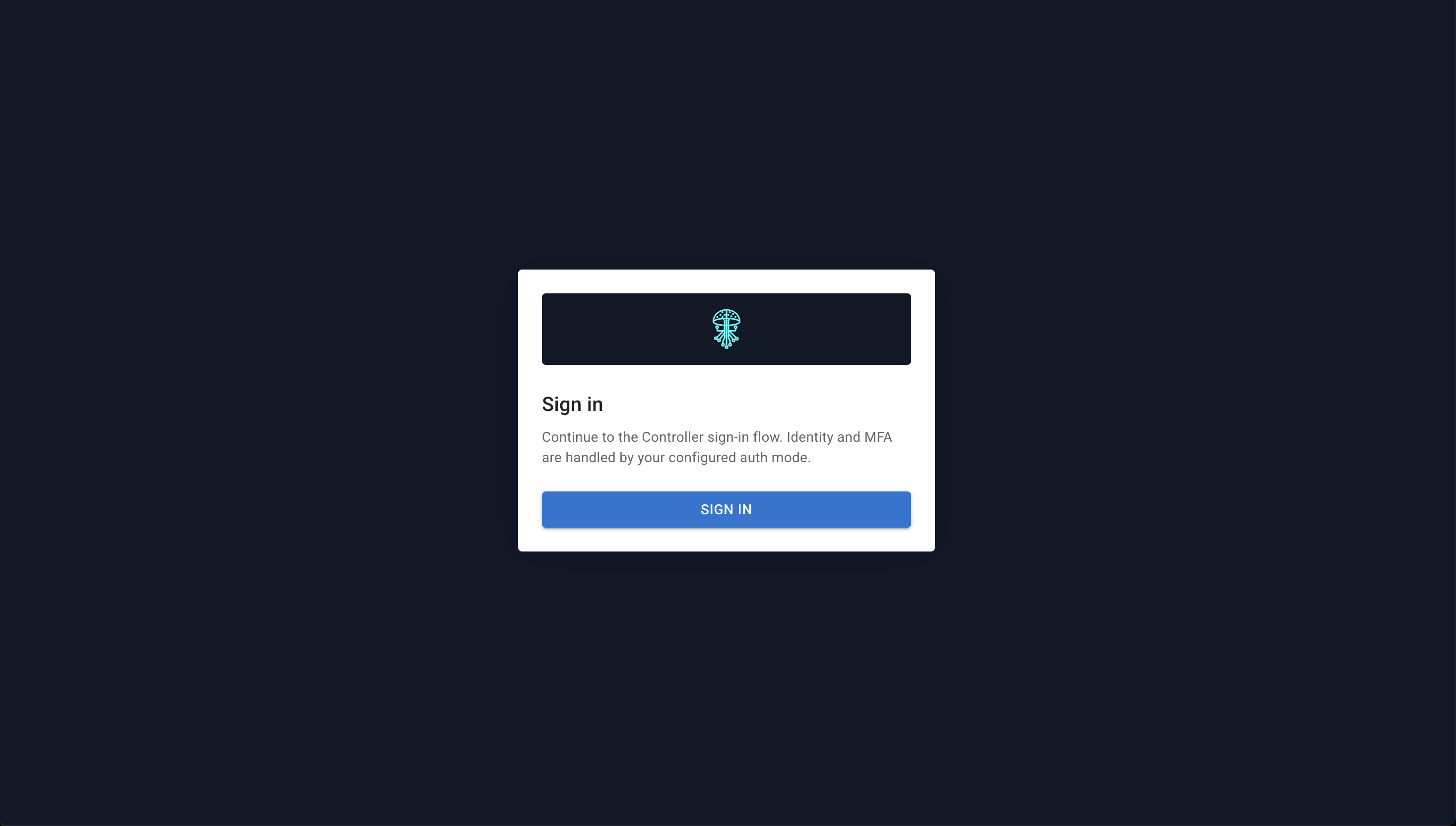
Address: /#/login
Heading Sign in. The page explains that the console uses the Controller OAuth flow. One button, Sign in, sends you to the provider.
If OAuth is not configured, the page says OAuth sign-in is not configured.... An error returned on the redirect is shown in an alert on this page.
Username and password
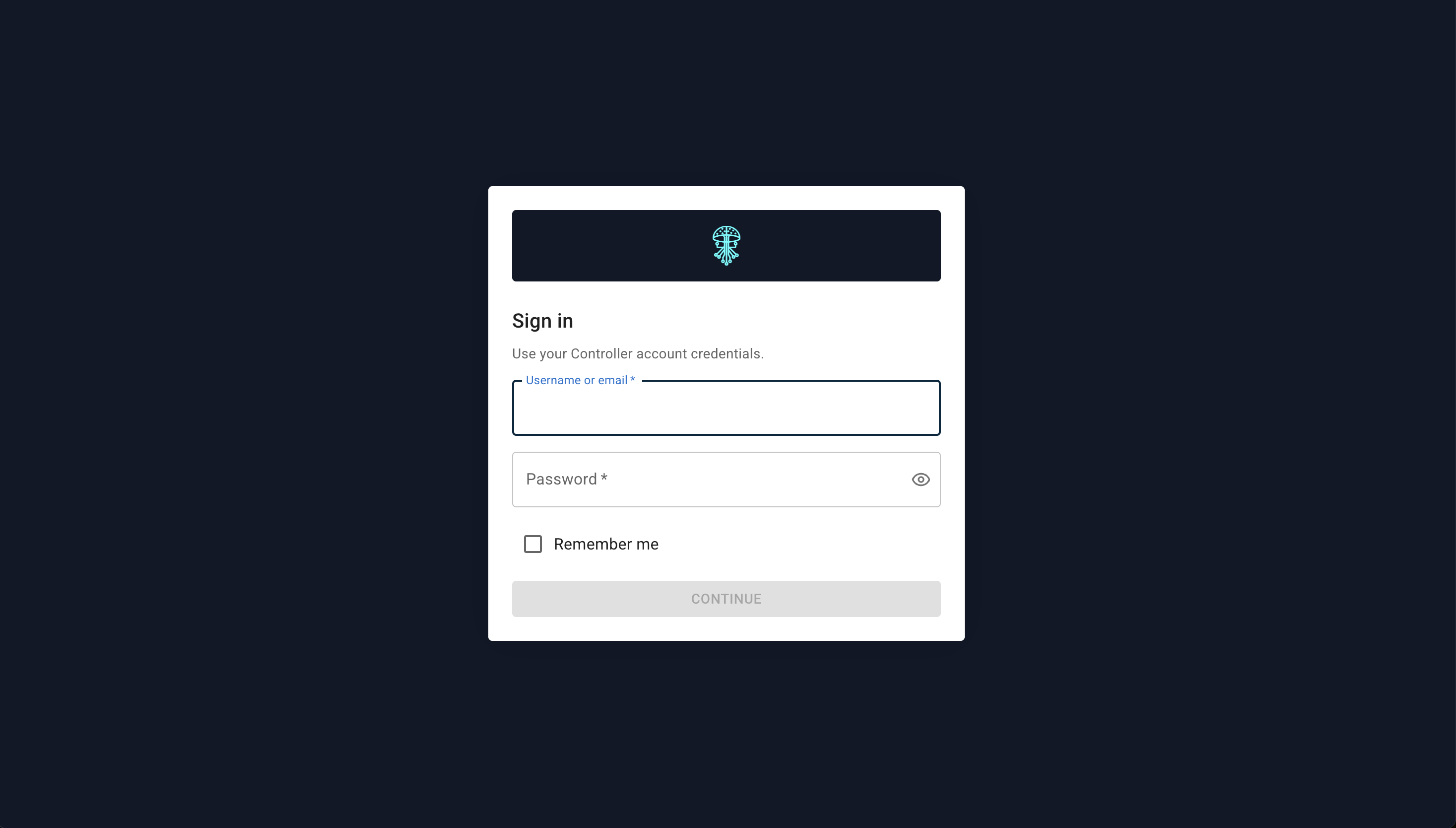
When the built-in provider asks for credentials:
- Username or email
- Password
- Remember me
- Continue
Two-factor verification
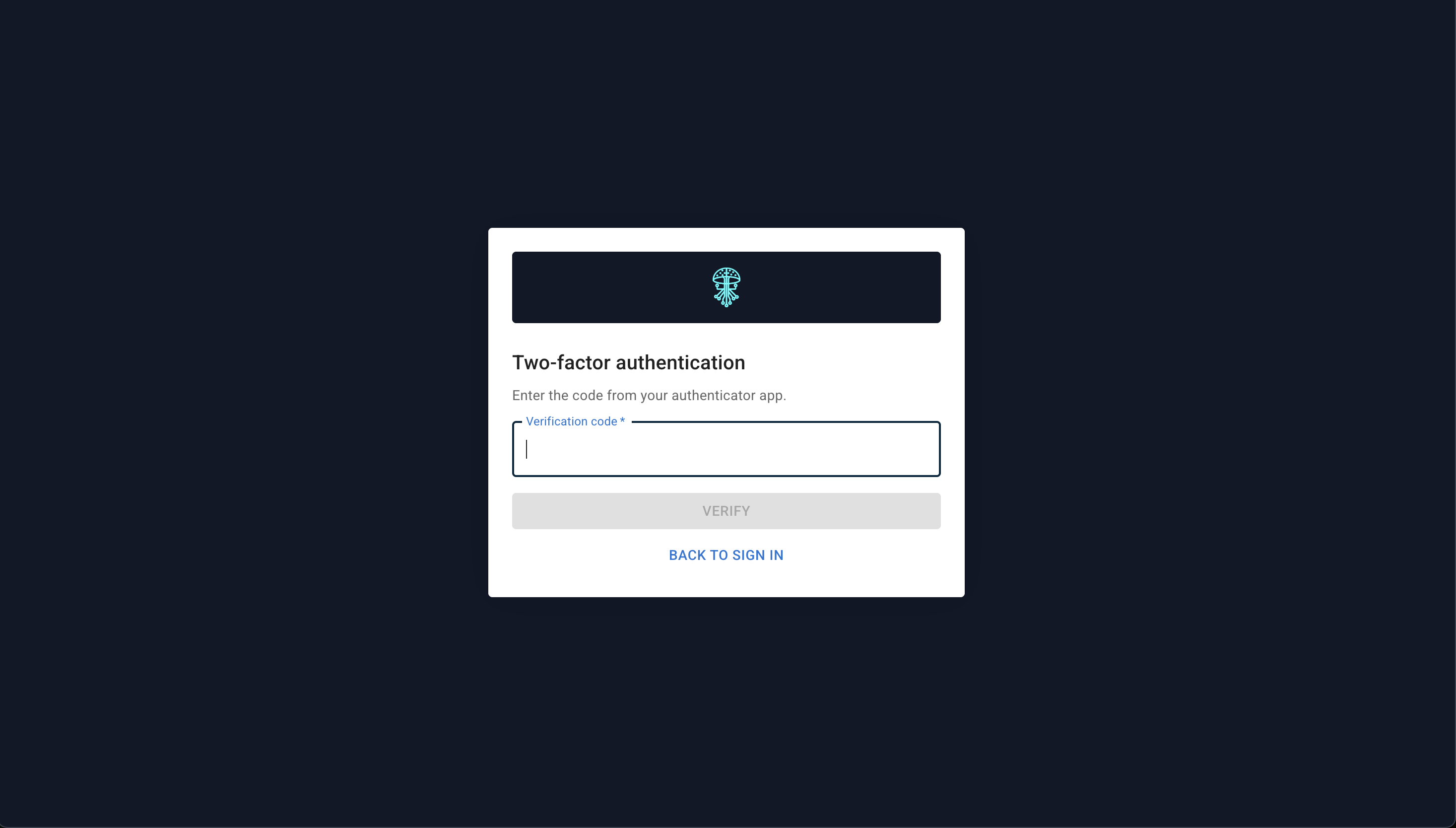
Heading Two-factor authentication. Enter the Verification code and choose Verify. Back to sign in leaves the step.
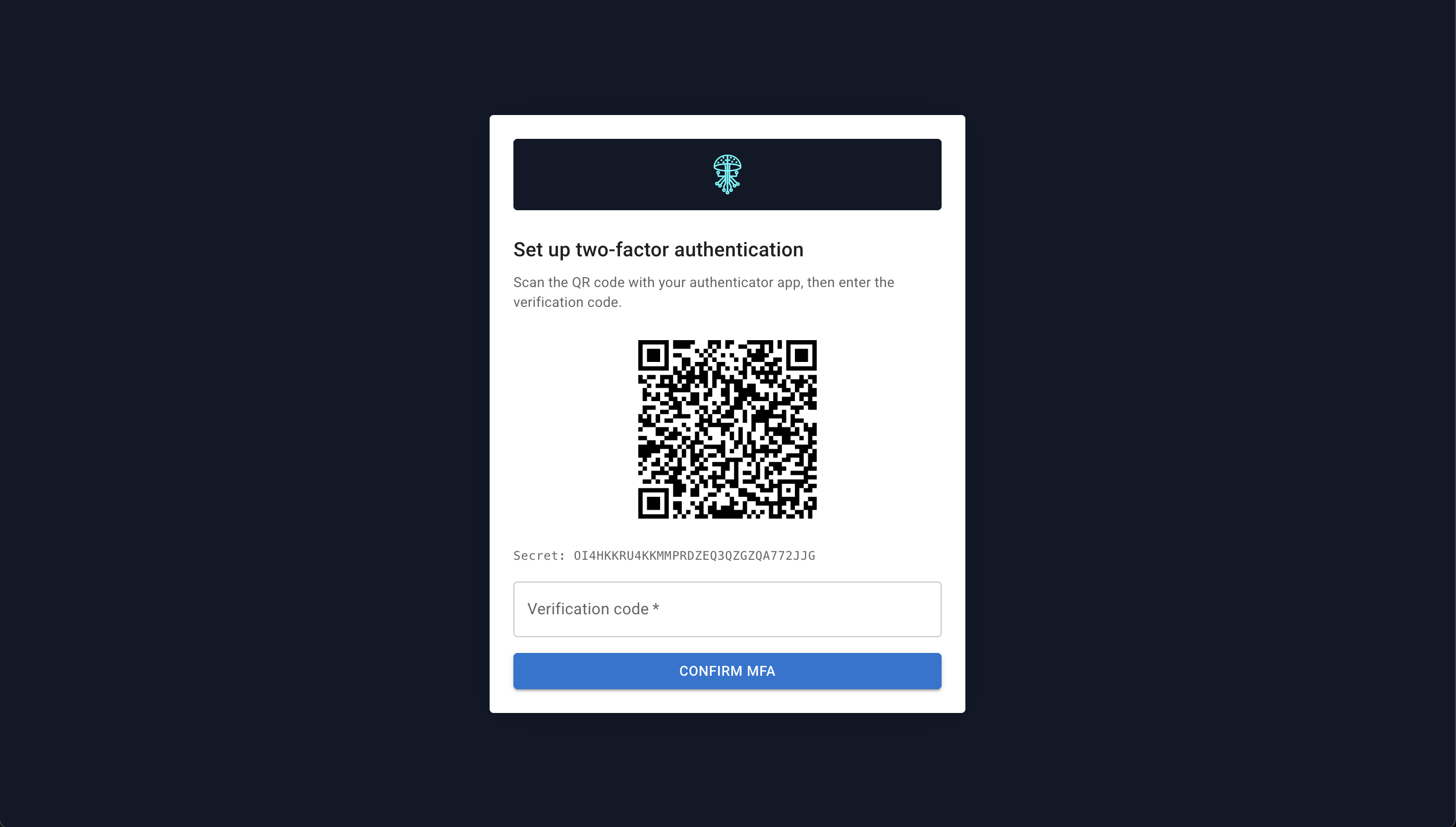
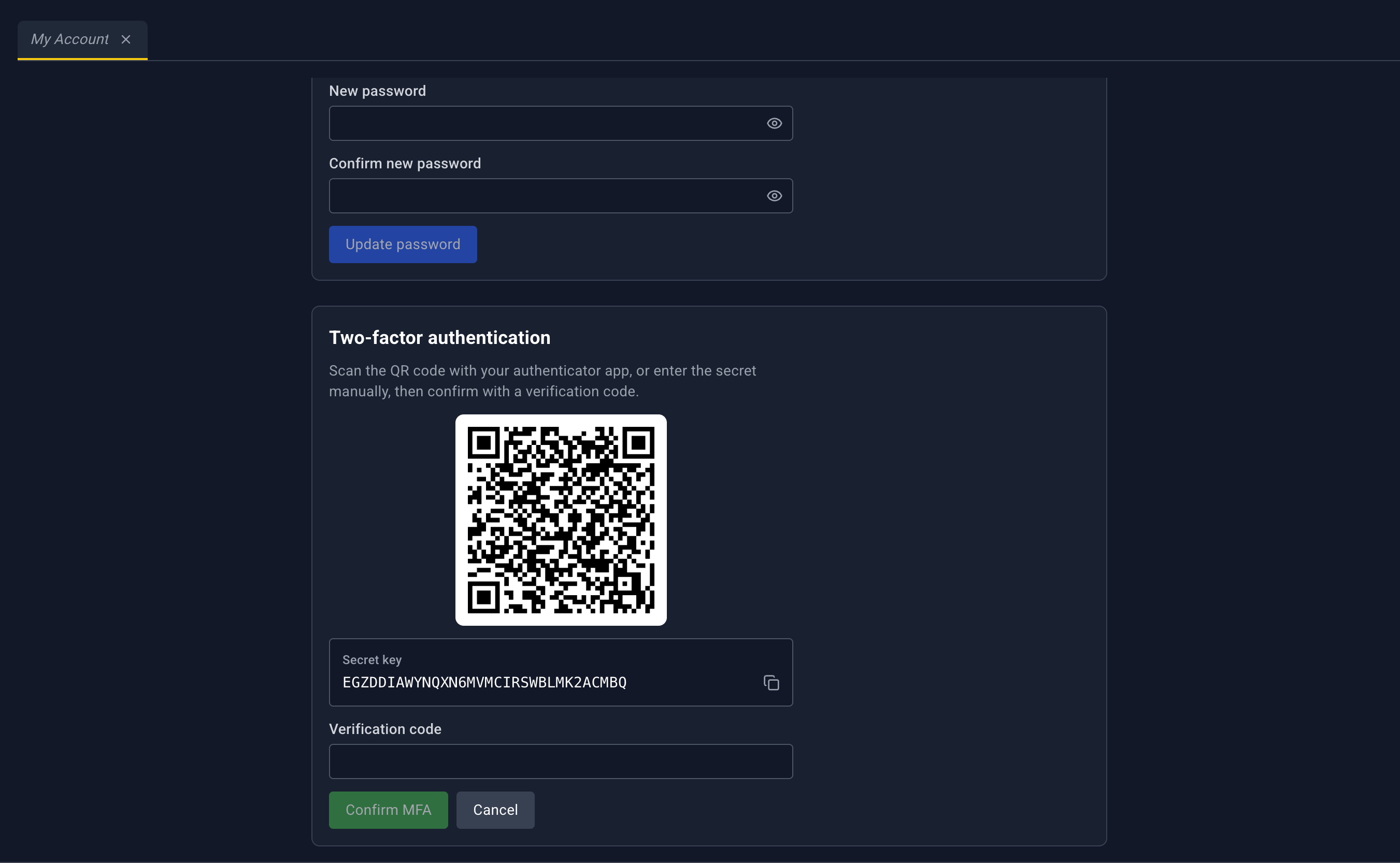
If your group requires MFA and you have not enrolled, the flow continues with Set up two-factor authentication (QR code, secret key, verification code, Confirm MFA or Cancel) before you reach the console.
Required password change
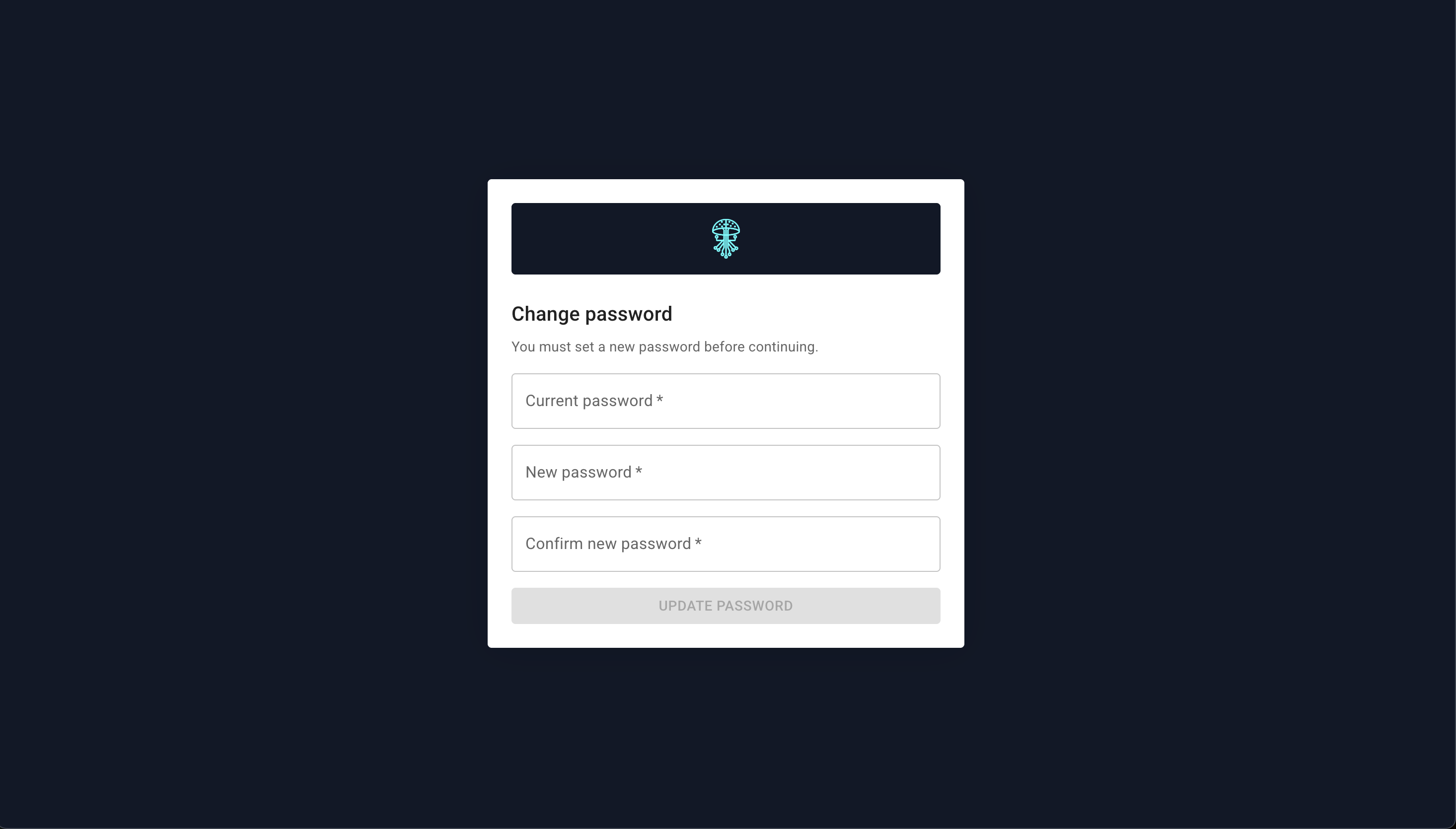
Address: /#/account/force-password-change
This page replaces the console until the password is changed. There is no sidebar and no tab bar.
Heading Change your password. Subtitle: You must set a new password before continuing.
- Current password
- New password, with Generate random
- Confirm new password
- Update password
After a successful change you are signed out. Back to sign in returns to login.
My Account
Sidebar: My Account (inside IAM when identity is built in, otherwise its own item)
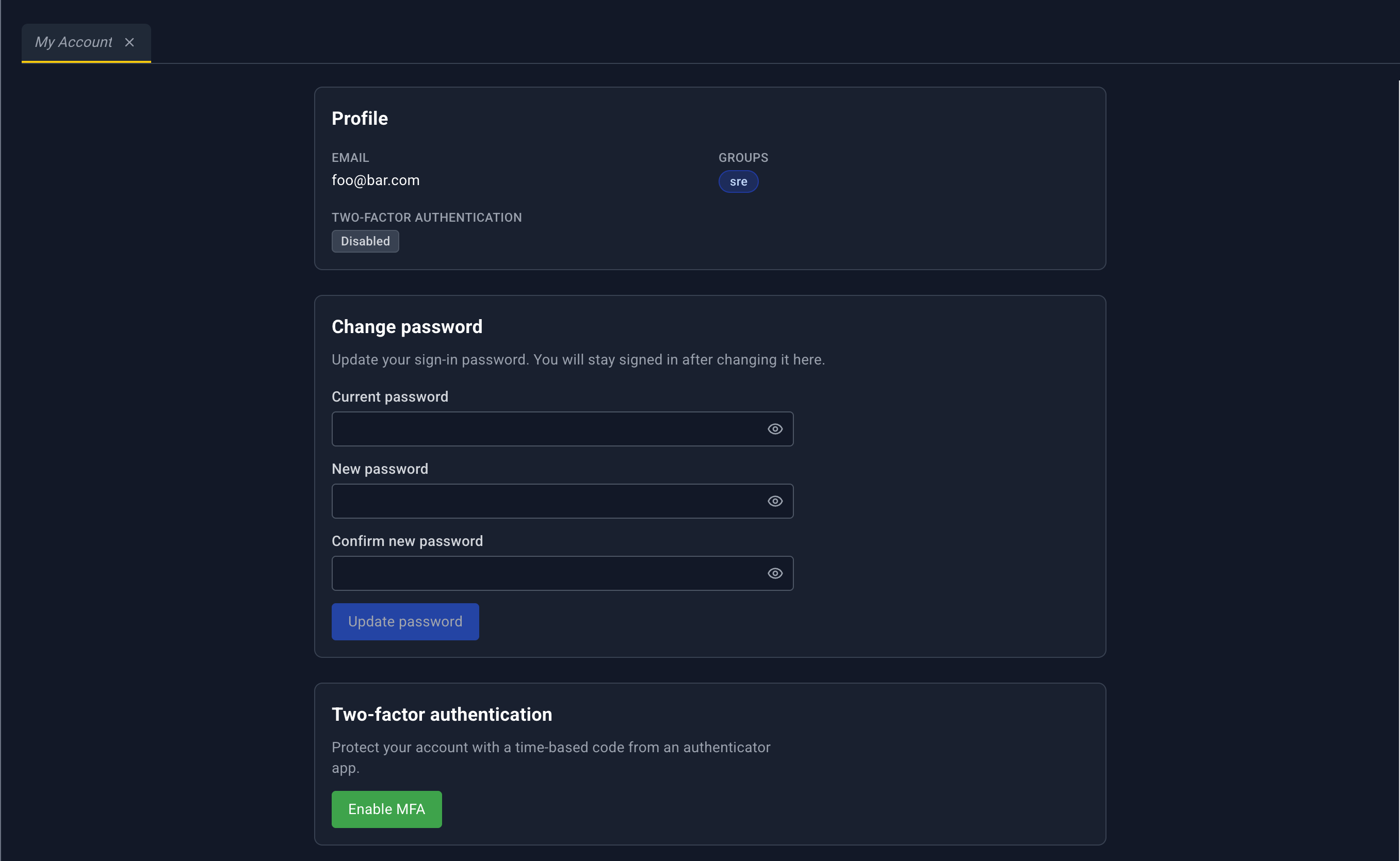
Address: /#/account
Heading My Account. Subtitle: Manage your profile, password, and two-factor authentication.
This page is a form, not a table, and it has no detail panel.
Profile: Email, Username when the profile has one, Groups, and Two-factor authentication as Enabled or Disabled.
Change password: Current password, New password, Confirm new password, Update password. Help text: You will stay signed in after changing it here. That differs from the required-change page, which signs you out.
Two-factor authentication:
- Enable MFA starts enrollment: a QR code, Secret key, Verification code, then Confirm MFA or Cancel.
- When MFA is already on, Disable MFA asks for a Verification code, then Confirm disable or Cancel.
With an external provider, this page still opens, under the amber banner. Password and MFA for that account are managed at the provider.
Users
Shown in the sidebar only for built-in identity.
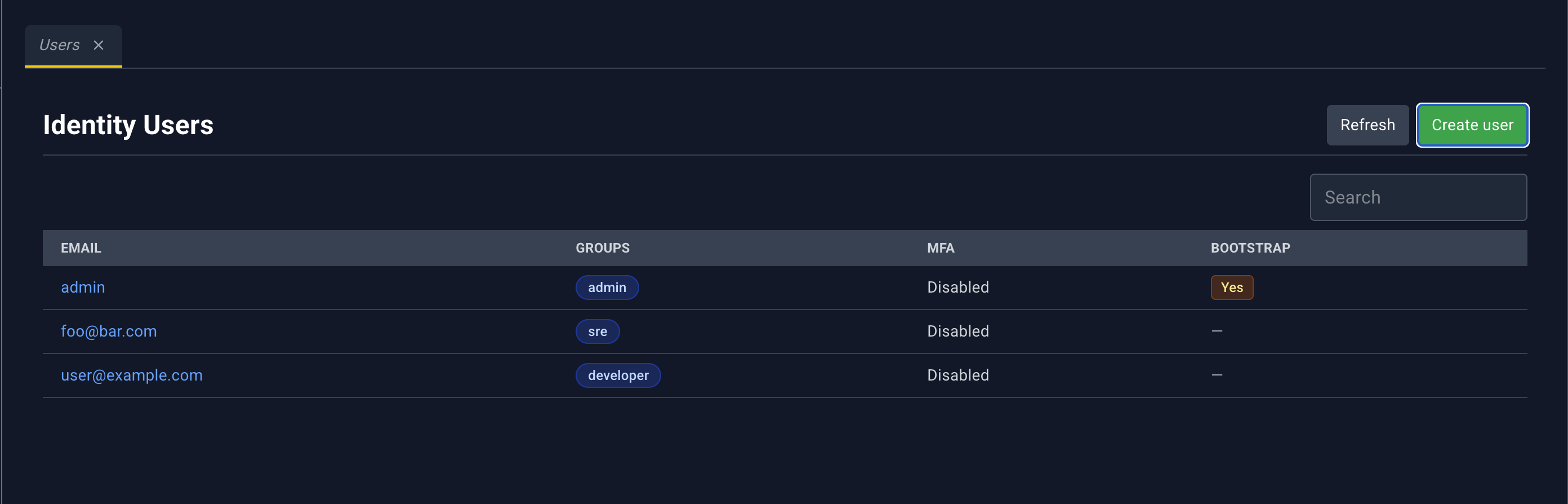
Address: /#/access-control/users
Page heading: Identity Users
Deep link: ?userId=
There is no YAML dropzone. Users are created in a dialog.
| Control | What it does |
|---|---|
| Refresh | Reloads the list |
| Create user | Opens the create dialog |
| Column | What it shows |
|---|---|
| Email. Click to open the detail panel. | |
| Groups | Badges for each group |
| MFA | Enabled or Disabled |
| Bootstrap | Yes for the bootstrap user, otherwise blank |
Loading overlay: Loading users.
User detail panel
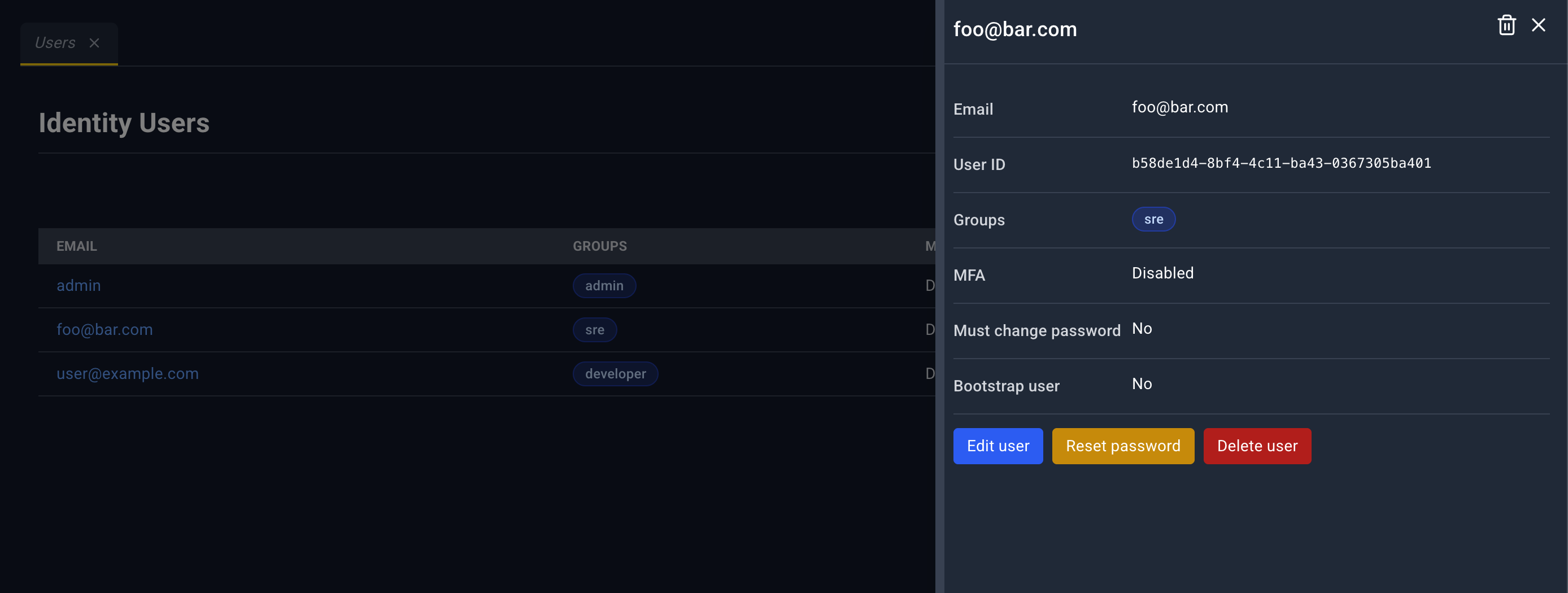
Title is the email, or User details. The panel refreshes while it is open.
| Icon | Name | What happens |
|---|---|---|
| Delete | Same delete flow as the button inside the panel. Hidden for the bootstrap user. | |
| Close | Closes the panel. |
There is no YAML edit icon.
Fields: Email, User ID, Groups, MFA, Must change password, Bootstrap user.
Actions:
- Edit user opens the edit dialog
- Reset password issues a one-time credential
- Delete user, or the line Bootstrap users cannot be deleted
Create and edit
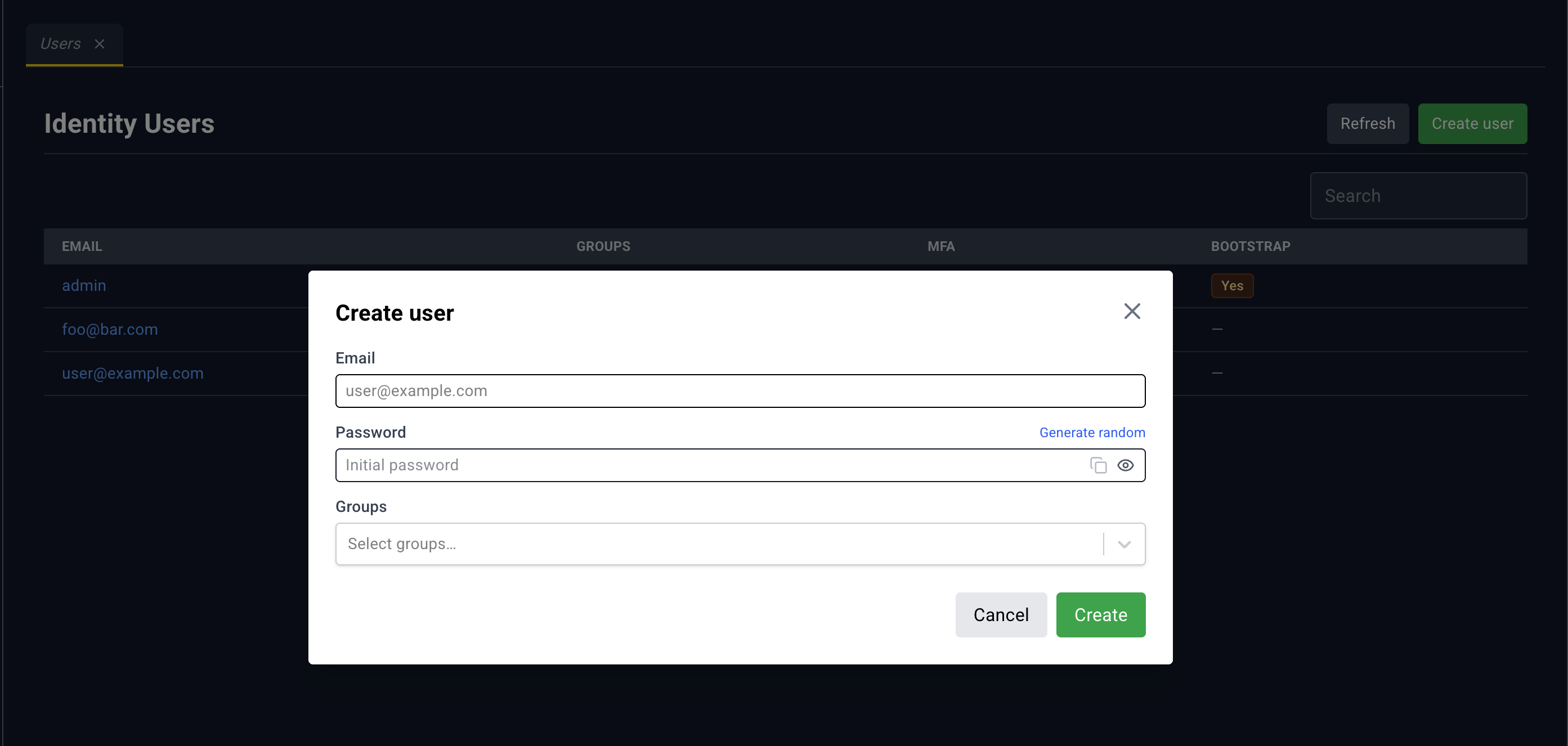
Create user and Edit user
- Password, with Generate random. On create, the generated password can be copied before you close the dialog.
- Groups, multi-select, placeholder Select groups…
Delete user warns: This will permanently remove the user...
Password reset says Share this one-time credential... and shows Temporary password and Reset token with copy. Close dismisses it.
Groups
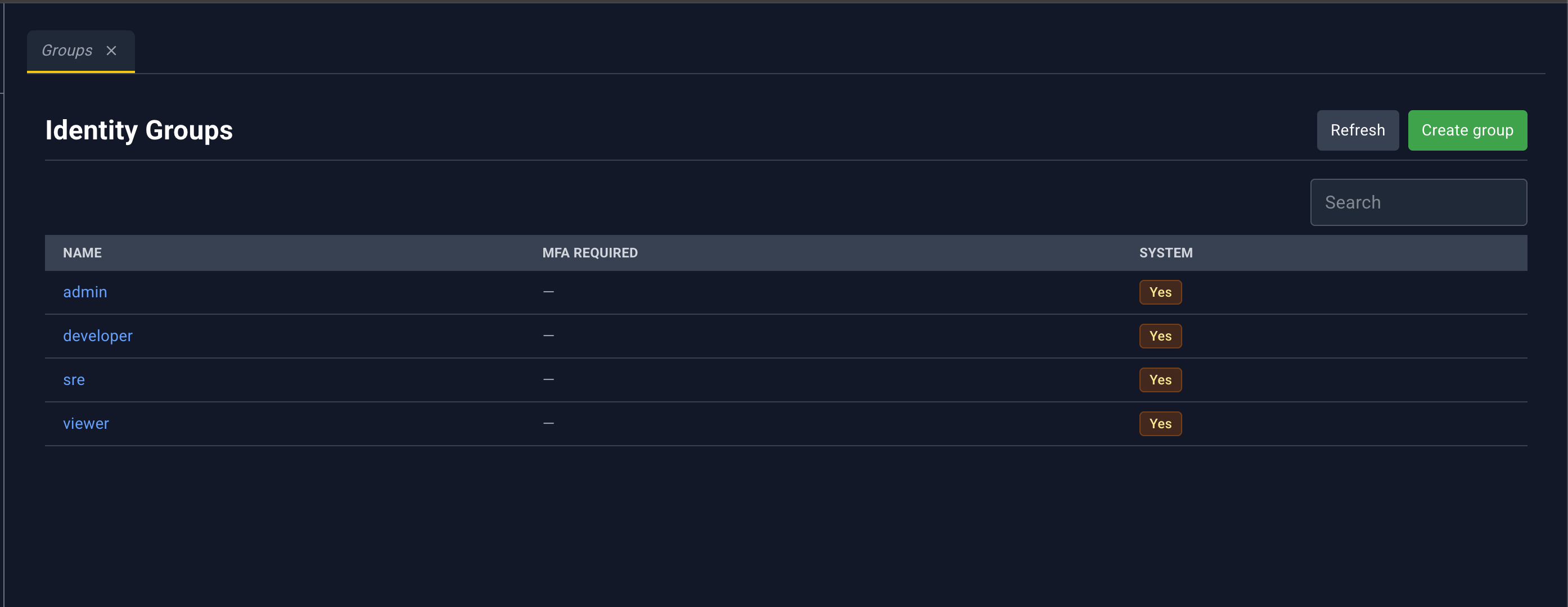
Address: /#/access-control/groups
Page heading: Identity Groups
Deep link: ?groupName= or ?groupId=
Groups you belong to decide whether you can edit groups. If you cannot, create, edit, and delete stay hidden and the detail panel says you do not have permission.
| Column | What it shows |
|---|---|
| Name | Group name. Click to open the detail panel. |
| MFA required | Required badge, or blank |
| System | System-group marker |
Group detail panel
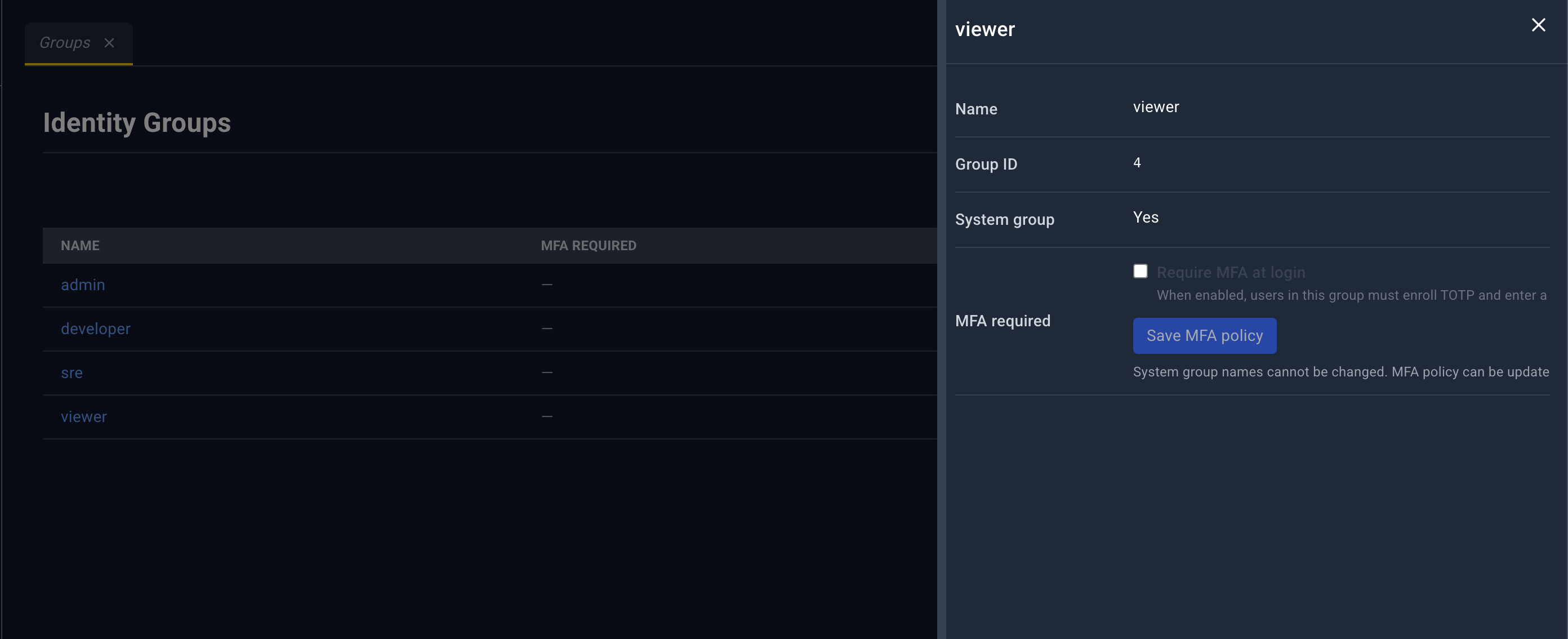
Fields: Name, Group ID, System group, MFA required.
- On a system group, MFA is a switch labeled Require MFA at login plus Save MFA policy.
- On a custom group, MFA is a badge, and the create and edit dialog is where you change it.
Actions: Edit group and Delete group, or a permission message.
Header follows the same rule as the button: hidden when you cannot edit, and not offered in a way that removes a protected system group. is always there. There is no YAML editor.
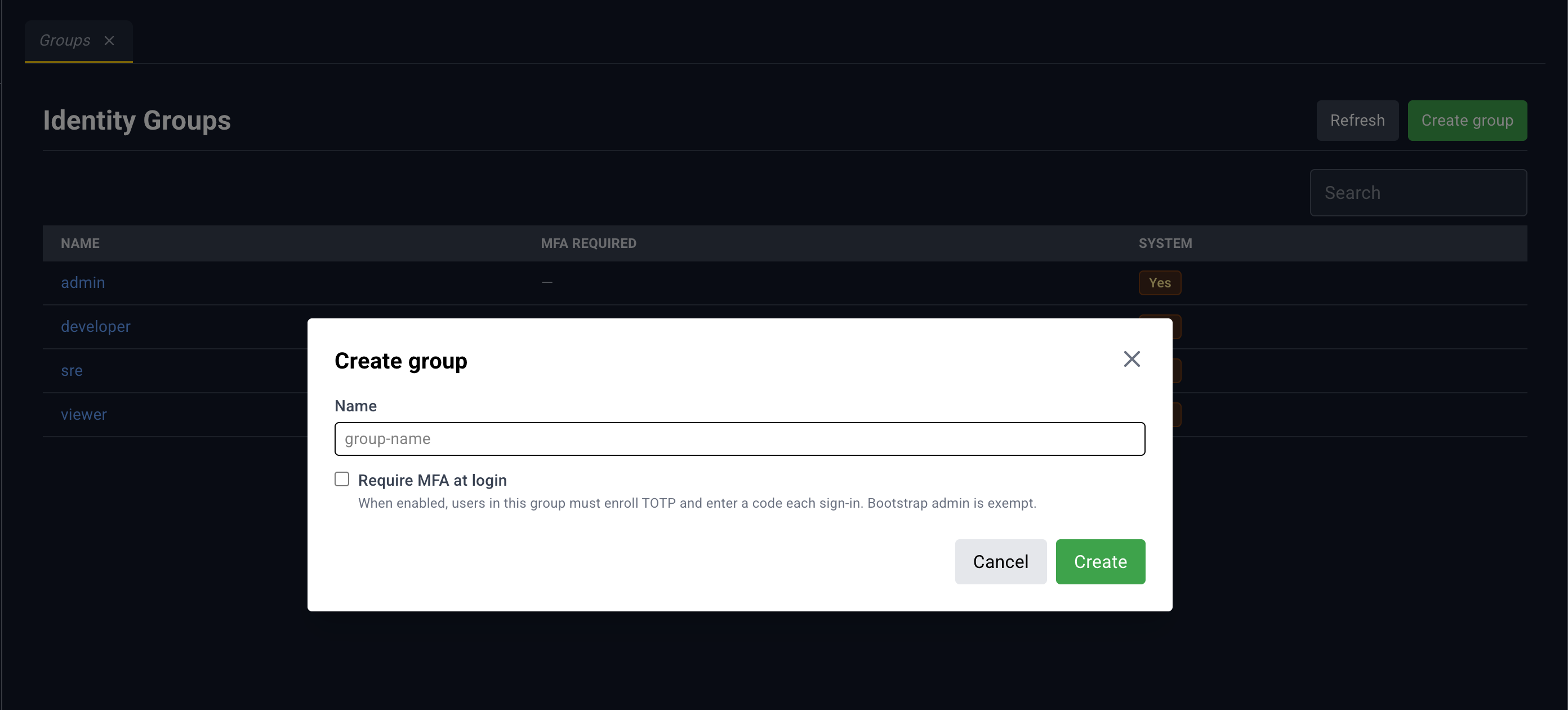
Create and edit dialog
- Name
- Require MFA at login. When enabled, users in this group must enroll TOTP...
Delete group warns that members may lose access.